AI and integrations
View as MarkdownAI agents (MCP)
Connect Claude Code, Codex, Cursor or another MCP client to Takahe so an AI agent can read and update your tasks and track time.
MCP (Model Context Protocol) is an open standard that lets AI assistants use outside tools. Takahe runs an MCP server, so an AI agent such as Claude Code, Codex or Cursor can list your projects, read tasks, create and update them, comment, attach files and start or stop timers. The agent signs in with a token you create in Takahe, and it can only reach what that token allows.
Choose a token
There are two kinds of MCP tokens.
| Personal MCP token | Project token | |
|---|---|---|
| Where you create it | Settings › MCP Tokens | Project Settings › AI agents (MCP) |
| Who can create it | Anyone, for themselves | People who manage the project |
| What it reaches | Projects you are a member of, in all your teams or in one team | One project |
| Who the work is recorded as | You | A separate agent user named after the token |
| Whose timer it uses | Yours, or an agent's with as_agent |
The agent's own |
Use a personal token when you work with an AI agent on your own tasks. Use a project token when you want an agent with its own name on one project, for example "Claude Code" on Website redesign, with its comments and changes clearly marked as the agent's.
People who manage a project are its owners and the owners and admins of its team. See Roles and permissions.
Create a personal MCP token
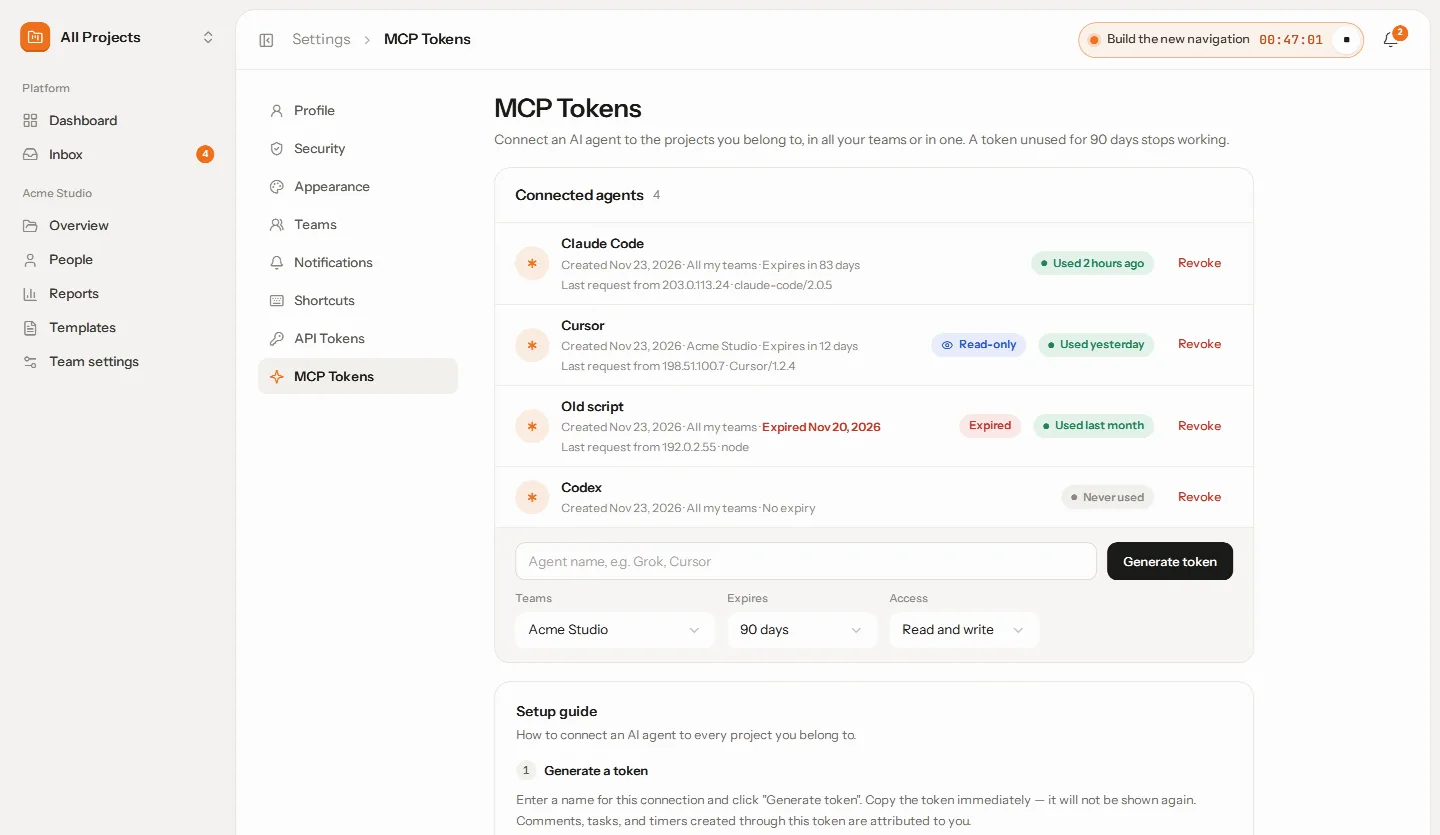
- Open your account settings and go to MCP Tokens.
- Enter a name for the connection, for example "Cursor on my laptop".
- Choose which teams the token reaches: All my teams or one team. Your current team is preselected.
- Choose when the token expires under Expires: 30 days, 90 days or No expiry. New tokens expire after 90 days unless you pick another. See Token expiry.
- Choose Access: Read and write, or Read-only for an agent that should only look. See Read-only tokens.
- Click Generate token.
- Copy the token right away. It is shown only once.
The token reaches the projects you are a member of in the chosen teams. It doesn't reach projects you manage but haven't joined. If you leave a team, a token limited to that team stops reaching anything.
Create a project token
- Open the project and click Settings in the sidebar.
- Go to AI agents (MCP).
- Enter the agent's name, for example "Claude Code". This name appears on the agent's comments, tasks and time.
- Choose Expires and Access, as for a personal token.
- Click Generate token and copy the token. It is shown only once.
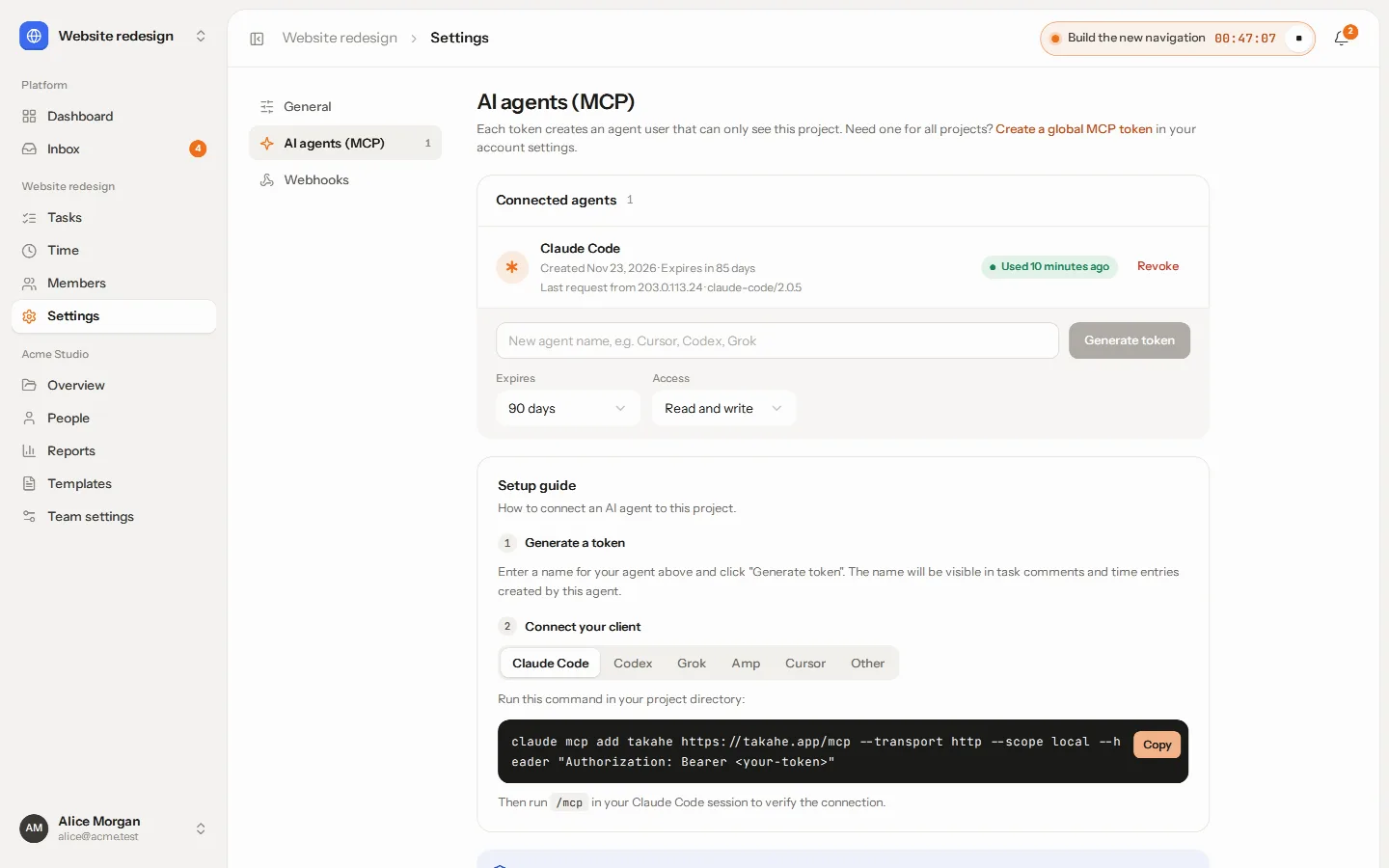
Each project token creates an agent user. The agent joins the project as a member with the Agent role and can't see any other project. Like other members, it sees only its own tracked time and never the project's budget.
To remove an agent, click Revoke next to it and confirm. The agent loses access right away. If the person who created a project token stops managing the project, for example because they left the team, the token stops working.
Token expiry
A token can expire. Choose Expires when you generate it:
- 30 days or 90 days: the token stops working after that many days. 90 days is preselected.
- No expiry: the token works until you revoke it, or until it isn't used for 90 days.
Each token in the list shows when it ends, for example Expires in 12 days, or Expired once it has. An expired token stays in the list so you can revoke it. An agent that uses an expired token gets an error that says the token expired. Generate a new token and give it to the agent.
A week before a token expires, Takahe emails you, once per token, so you can replace it in time. For a project token, the email goes to the person who created it. If that person is gone, it goes to the people who manage the project. It is a security message, so you can't turn it off in your notification settings.
Tokens created before expiry existed don't expire. They still stop working after 90 days without use. See Limits and security.
Read-only tokens
Choose Read-only under Access for an agent that should only look, for example one that summarizes your tasks or reviews your work. A read-only token can list projects and read tasks, comments, tracked time and attachments. Every tool that creates or changes something answers with an error that says the token is read-only: create-task-tool, update-task-tool, complete-task-tool, assign-task-tool, link-tasks-tool, unlink-tasks-tool, add-comment-tool, add-attachment-tool, upload-attachment-tool, start-timer-tool, stop-timer-tool and create-todo-list-tool. The agent is told not to retry and to ask you for a token with write access.
A read-only token reaches the same projects as any token with its teams or project. You can't change a token's access later. To give an agent write access, generate a new token and revoke the old one. The token for the Chrome extension has no read-only kind, because the extension only creates and completes tasks.
See how a token is used
The list of tokens shows when each token was last used, and where that request came from: its IP address and the client, such as claude-code/2.0.5. The time is accurate to a few minutes. If a token turns up somewhere you don't expect, revoke it.
Takahe keeps only the latest address and client of each token, not a history, and deletes them with the token.
Connect your AI client
Both setup pages show a Setup guide with ready-to-copy snippets for Claude Code, Codex, Grok, Amp, Cursor and Other clients. Right after you generate a token, the snippets already contain it.
Takahe's MCP server uses the Streamable HTTP transport:
- Server URL:
https://tracklo.vocalio.sk/mcp - Authentication: the header
Authorization: Bearer YOUR_TOKEN
Replace YOUR_TOKEN with your token in the examples below.
Claude Code
Run this in your project directory:
claude mcp add --transport http takahe https://tracklo.vocalio.sk/mcp --header "Authorization: Bearer YOUR_TOKEN"
This adds Takahe for the current directory. Add --scope user to use it in every directory. Then run /mcp in Claude Code to check the connection.
Codex
Add this to ~/.codex/config.toml, or to .codex/config.toml in your project:
[mcp_servers.takahe]
url = "https://tracklo.vocalio.sk/mcp"
http_headers = { "Authorization" = "Bearer YOUR_TOKEN" }
Restart Codex or run /mcp to check the connection. The setup guide in Takahe shows the full Codex steps.
Other clients
Any client that can send a custom header can connect. Many, such as Cursor, use this JSON shape:
{
  "mcpServers": {
    "takahe": {
      "url": "https://tracklo.vocalio.sk/mcp",
      "headers": {
        "Authorization": "Bearer YOUR_TOKEN"
      }
    }
  }
}
VS Code uses servers instead of mcpServers and needs "type": "http" in the server entry. Claude Desktop typically needs the mcp-remote bridge.
What the agent can do
These are the tools your client sees. Tasks are named by their identifier, such as WEB-12.
| Tool | What it does |
|---|---|
list-projects-tool |
Lists the projects the token reaches, with task counts and team. Can filter by active or archived. |
get-project-tool |
Shows a project's owners, members, lists with their ids, and the budget for people who manage it. Agents are marked "(mcp)". |
list-tasks-tool |
Lists tasks of a project or list, with their start and due dates. Filters by assignee, done, priority, a search by identifier or title, or dates: unscheduled lists tasks with neither a start nor a due date (the Unscheduled list of the Timeline), scheduled_from and scheduled_to (YYYY-MM-DD) tasks whose dates touch that period (the bars of the Timeline). Can include subtasks. |
get-task-tool |
Shows a task with its description, comments (each with its number and the emoji reactions it got), tracked time, subtasks, linked tasks and attachments. |
list-subtasks-tool |
Lists the subtasks of a task. |
list-comments-tool |
Lists all comments on a task, each with its number and the emoji reactions it got. |
list-tags-tool |
Lists a project's tags. |
get-attachment-tool |
Reads an attachment of a task by its file name. |
get-running-timer-tool |
Shows your running timer, if any. With as_agent and the project, lists that agent's running timers. |
create-task-tool |
Creates a task in a list, or a subtask under another task. Title and priority are required; description, assignee, start date, due date, estimate and tags are optional. The Timeline draws a task from its start date to its due date. |
update-task-tool |
Changes a task's title, description, priority, start date, due date, estimate or tags, or moves it to another list of the same project. To move or schedule a task, as dragging its bar on the Timeline does, pass start_date and due_date together. Set clear_start_date or clear_due_date to remove a date (a field left out or set to null stays as it is). The start must be on or before the due date. Link tasks that block each other with link-tasks-tool, and the Timeline draws the arrow. |
complete-task-tool |
Marks a task as done or not done. |
assign-task-tool |
Assigns a task to a project member, or unassigns it. |
link-tasks-tool |
Links two tasks of the same project: related to, blocks, blocked by, duplicate of or duplicated by. Linking them again changes how they are linked. |
unlink-tasks-tool |
Removes the link between two tasks. |
add-comment-tool |
Adds a comment, optionally showing files already attached to the task. |
add-attachment-tool |
Attaches a file whose content is sent in the call. |
upload-attachment-tool |
Gives a one-time link to upload a file from disk. |
create-todo-list-tool |
Creates a new list in a project. |
start-timer-tool |
Starts a timer on a task. Your own timer stops the one that was running; an agent's timer runs next to its others. |
stop-timer-tool |
Stops a running timer. Pass the task to pick which one, and as_agent to stop an agent's. |
Descriptions and comments the agent writes in Markdown are shown formatted in Takahe.
What the agent sees follows the same rules as the web app. Tracked time on a task is everyone's only if the token's user manages the project; otherwise it is only their own. See who sees money.
Naming tasks
If two of your teams use the same project prefix, an identifier like WEB-12 can match two tasks. The tool then refuses and names the teams. Use the task's number id instead, such as #1234, which list-tasks-tool shows at the end of each line. Passing the project to list-tasks-tool, or using a token limited to one team, also works.
Act as a project agent
With a personal token, you can record work as one of the project's agents instead of yourself. Pass as_agent with the agent's exact name or id, for example "Claude Code". The comment, file, new task or change is then shown as made by that agent.
- It works with
add-comment-tool,add-attachment-tool,upload-attachment-tool,create-task-tool,update-task-tool,complete-task-tool,assign-task-tool,link-tasks-tool,unlink-tasks-tool,start-timer-tool,stop-timer-toolandget-running-timer-tool. - The agent must belong to the task's project. Agents exist on a project once someone creates a project token there.
- You can't act as a person, only as an agent.
- A project token always acts as its own agent and can't use
as_agent. - With
as_agent, the timer tools work with the agent's timers, not yours. See Timers.
Files and attachments
To attach a file, the agent has two options:
upload-attachment-toolreturns acurlcommand with a one-time upload link. The agent runs it with the file path, so the file never passes through the conversation. Use it for images, PDFs and anything bigger than a short text. The link is valid for 15 minutes and works once.add-attachment-tooltakes the content in the call, as text or as base64. It's meant for text and small files.
Both return the attachment id. To show files in a comment, pass their ids to add-comment-tool: images appear inline, other files as links. Each file can be up to 10 MB.
To read a file, get-attachment-tool returns images and audio inline, and UTF-8 text files up to 50 KB as text. Any other file comes back as a download link valid for 15 minutes, with a curl command that saves it to disk.
Timers
There are two kinds of timers:
- Your timer. Without
as_agent,start-timer-toolandstop-timer-toolcontrol the timer of the token's user, the same timer you see in the top bar of the web app. You have one at a time: starting a new one stops the running one. See Time tracking. - An agent's timers. With
as_agent, or with a project token, the time is the agent's. An agent can run several timers at once, one per task, so several agent sessions can each track their own task. They never stop your timer, so you can keep tracking your own work while agents work on other tasks.
To track an agent's work on a task:
- Call
start-timer-toolwith the task andas_agent, for example"Claude Code". If the agent's timer already runs on that task, it keeps running. - When the agent is done, call
stop-timer-toolwith the same task andas_agent. The agent's timers on other tasks keep running.
With as_agent, stop-timer-tool needs the task and get-running-timer-tool needs the project, because that's where the agent is looked up. Without a task, stop-timer-tool stops the only running timer. If several run, it names them and asks for the task.
The agent's time appears under its name on the task, on the Time page and in reports, recorded with the agent's rates on the project, not yours. People who manage the project see the agent's running timers in the task's Time entries panel. An agent's timer that runs for 8 hours stops on its own, because an agent has no inbox for a reminder.
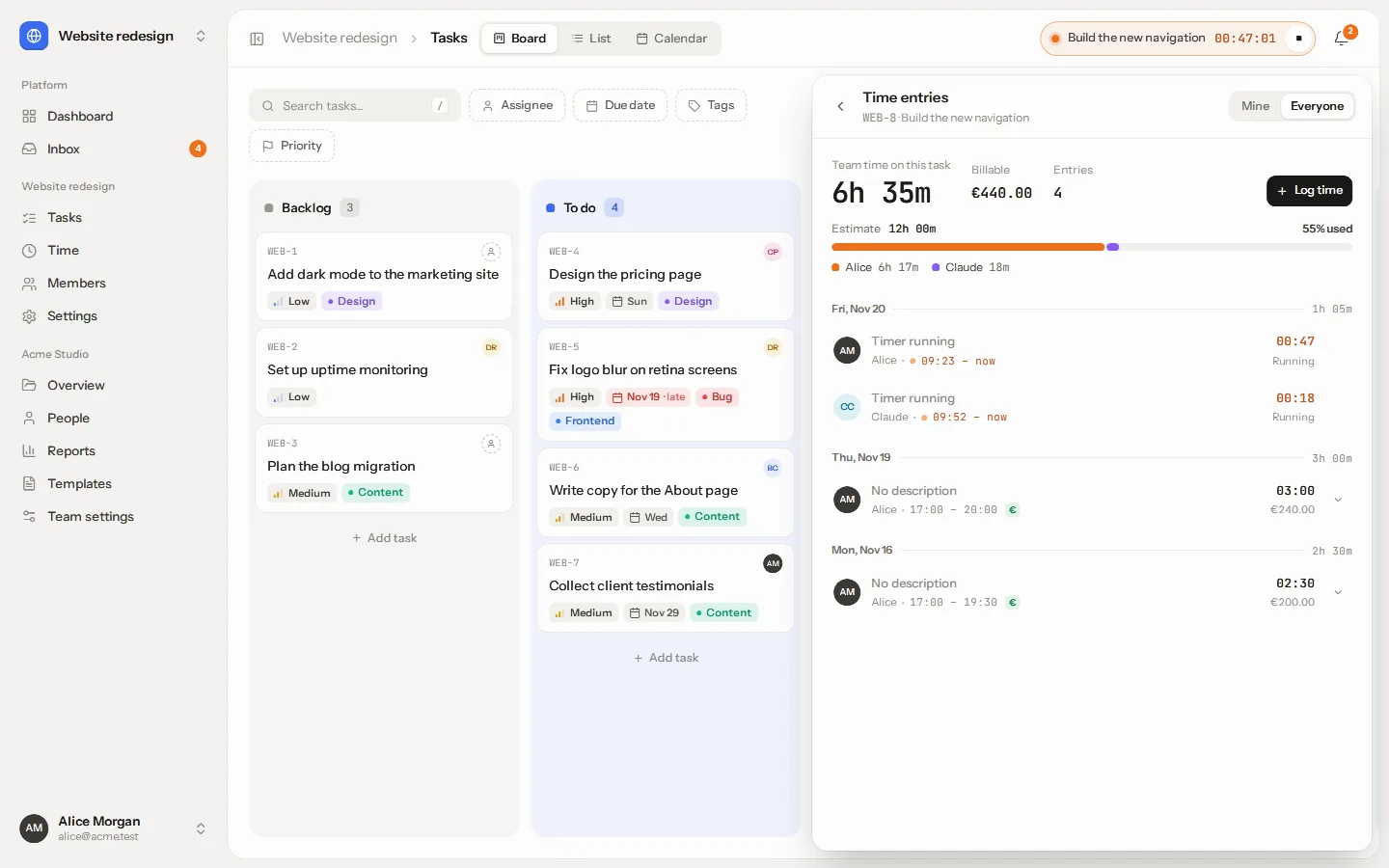
A token limited to one project or to some teams doesn't see or stop a timer running outside them. If your timer runs on such a project, start-timer-tool refuses to start a new one. Stop the timer in Takahe first.
Docs for AI assistants
This documentation is also available as plain Markdown. Give it to an AI assistant such as Claude or ChatGPT when you ask it about Takahe, or let an agent read it on its own.
https://tracklo.vocalio.sk/llms.txtlists the feature pages of the Takahe website, then every docs page with a short description and a link to its Markdown version.https://tracklo.vocalio.sk/llms-full.txtholds the whole documentation in one file.- Every page has a Markdown version at its address with
.mdat the end, for examplehttps://tracklo.vocalio.sk/docs/tasks.md.
To open the Markdown version of the page you're reading, click View as Markdown above its title. The footer of every docs page links to llms.txt.
Limits and security
- A token is shown only once. If you lose it, revoke it and generate a new one.
- Treat a token like a password. Anyone who has it can act in Takahe as its user.
- A token stops working when it expires, and when it isn't used for 90 days.
- The server accepts up to 180 requests per minute per account.
- Upload and download links are limited to 20 requests per minute.
- Attachments are limited to 10 MB. Comments are limited to 5,000 characters and 20 attached files.
- A Takahe system administrator gets no extra access over MCP. Every token reaches only projects its user is a member of.
- MCP tokens don't work for the Chrome extension, and its tokens don't work for MCP.