Getting started
View as MarkdownQuick start
Sign up, set up your team and first project, invite people and track your first hour in a few minutes.
This guide takes you from a new account to your first tracked hour. It takes a few minutes, and you can change everything you set up here later.
Create your account
- Go to tracklo.vocalio.sk, type your e-mail and click Get started. You can also click Get started at the top of the page, or Sign up on the login page.
- Fill in Name, Email address, Password and Confirm password. The e-mail you typed on the home page is already filled in.
- Click Create account.
- Open the e-mail Takahe sends you and click the verification link. The Check your email screen shows the address it went to. If it doesn't arrive, look in your spam folder or click Resend verification email.
Note: Were you invited by someone? Open the link in the invitation e-mail instead. It takes you to sign-up with your address already filled in. Accepting the invitation also confirms your e-mail, and you go straight to the team or project you were invited to, without the setup wizard below.
Set up your team
After you verify your e-mail, a short wizard walks you through four steps: Team, Project, Invite and Done.
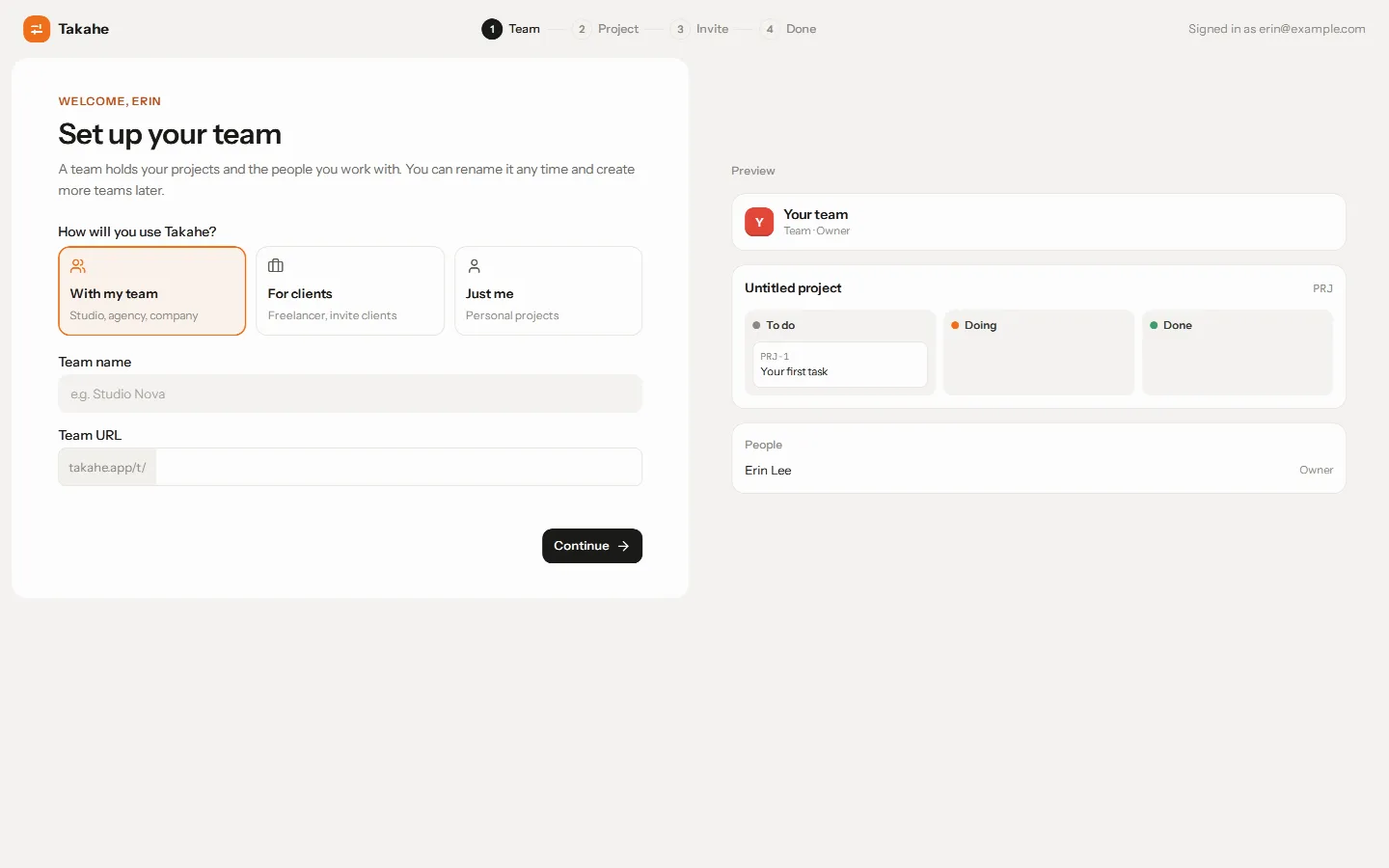
If someone has already invited you, the first step shows You have been invited with a Join and a Decline button for each invitation. You can join their team or set up your own.
Under How will you use Takahe?, pick one:
- With my team: for a studio, an agency or a company.
- For clients: for freelancers who want to invite their clients.
- Just me: for personal projects.
For the first two, enter a Team name, check the suggested Team URL and click Continue. Takahe creates the team with you as its owner. With Just me, your projects stay in your personal team (named something like "Alice's workspace"), and the wizard skips the invite step.
Not sure which one to pick? You can rename your team and create more teams later. See Teams.
Create your first project
- Enter a Project name, for example "Website redesign".
- Check the Prefix. Takahe suggests one from the name, such as
WEB. Your tasks will be numberedWEB-1,WEB-2, and so on. - Under Start from, pick Blank board or one of the templates. A template gives you ready-made lists, such as "Backlog", "In Progress", "In Review" and "Done".
- Click Create project.
You can also click Set up later and create a project afterwards from the project switcher at the top of the sidebar. See Projects.
Invite your teammates
- Type an e-mail address and pick a role: Member or Admin. Click Add another for more people.
- Leave Also add them to your new project checked if they should work on it right away.
- Click Send invitation.
Each person gets an e-mail with a link that works for 14 days. You can also click Skip for now and invite people later. See Invite people to a team.
On the last step, You're all set, click Open the board. If you skipped the project, click Go to the dashboard.
Track your first hour
- On the board, click Add task in a list, type a title and add the task. If you started with a blank board, click New list first.
- Click the play button (Start timer) on the task. The timer starts running.
- Work on the task. When you're done, click the button again (Stop timer).
That's your first time entry. You can also log time afterwards, add notes and mark entries as billable. See Time tracking.
The Getting started card
Until you've tried the basics, your dashboard shows a Getting started card with five steps. Each step ticks itself off when you do it, so there is nothing to check by hand.
| Step | Done when | Shortcut |
|---|---|---|
| Create your team and first project | You are a member of a project | New project → |
| Invite teammates | You sent an invitation, or someone else is in one of your teams | Invite → (team owners and admins) |
| Add your first task | You created a task | Open board → |
| Track time on a task | You have tracked time | Open board → |
| Connect an AI agent | You created an MCP token, or connected an agent to a project you manage | Set up → |
If you start a project from a template, Add your first task is ticked right away, because the template's starter tasks count as yours.
The card disappears when all five steps are done. To remove it earlier, click Hide. Hiding it affects only you.
Next steps
- Tasks: assignees, due dates, priorities and subtasks.
- Board, list, calendar and timeline: different views of the same tasks.
- Rates and budgets: turn tracked time into cost and revenue.
- AI agents: let an AI agent work on your tasks.