Tasks
View as MarkdownTasks
Create tasks, write descriptions, set the assignee, dates, priority, estimate and tags, add subtasks, link related tasks, and move or delete tasks.
A task is one piece of work in a project. It lives in a list, such as To Do or In Progress, and everyone on the project can see and edit it.
Create a task
On the board or in the list
- Open a project's Tasks.
- On the Board, click Add task at the bottom of a list, or the + next to the list's name to add the task at the top. In the List view, click Add task under a list or in its header.
- Type the title. Before you add it, you can also pick the assignee, due date, priority and tags.
- Press
Enterto add the task, orEscto cancel.
The task appears in its list right away. To learn more about the views, see Board, list, calendar and timeline.
Several tasks at once
Type or paste a whole list, and Takahe adds one task per line.
- Click Add task on the Board or in the List.
- Click Add several tasks at once next to the title. Or just paste text with more than one line into the title.
- In Add tasks, write one task per line. Start a line with
-to make it a subtask of the task above. - If you like, pick the assignee, priority, due date and tags. Every task and subtask you add gets them.
- Click Add tasks, or press
⌘ Enter(Ctrl Enteron Windows).
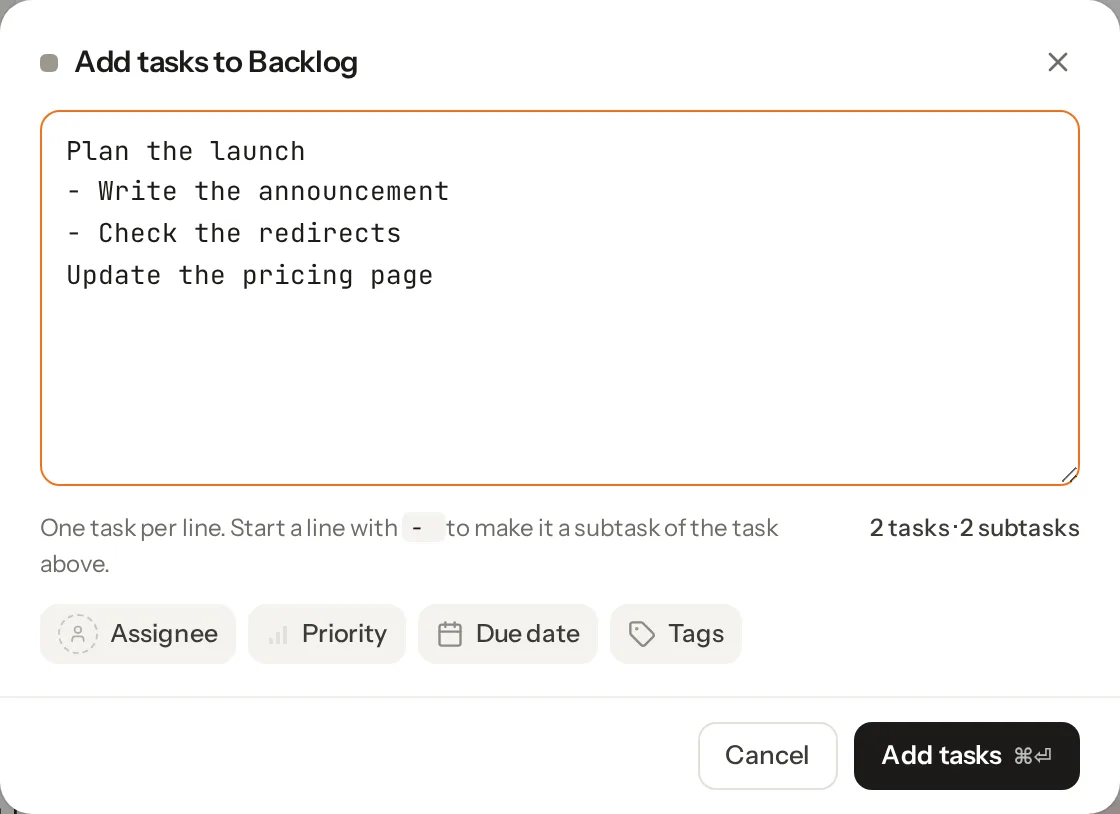
The tasks appear in the list in the order you typed them. If you started from the + next to a list's name on the Board, they go to the top of the list. A line starting with -- is a subtask too, because subtasks have one level. If every line starts with a dash, as in a pasted bullet list, each line becomes a task of its own. You can add up to 100 tasks and subtasks at once.
With the New task dialog
From the dashboard you can add a task to any of your projects without opening it first.
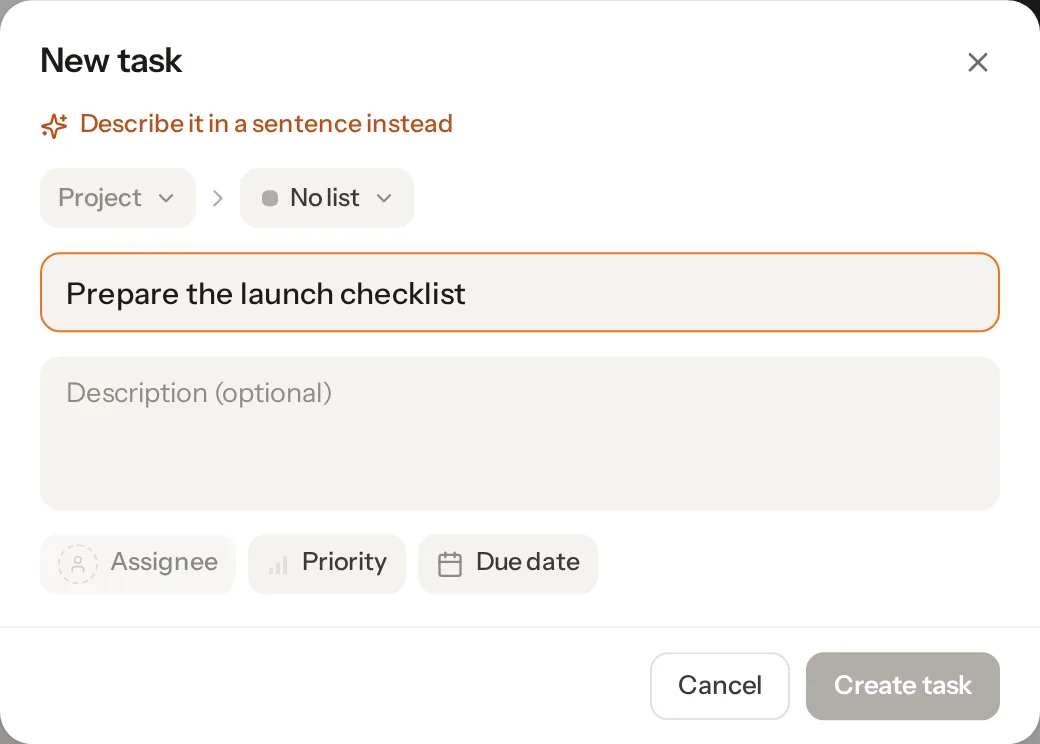
- On the dashboard, click New task.
- Pick the project and the list. The project picker shows your Favorites first and searches by name or prefix.
- Type a Task title and, if you like, a description. Set the assignee, priority and due date.
- Click Create task.
Takahe shows the new task's ID with two buttons: Open task and Add another. Next time, the dialog starts in the same project and list. To describe the task by voice instead, click Dictate or Describe it in a sentence instead. See AI assist.
On a phone, a round + button adds tasks to the board. See Takahe on your phone.
Task IDs
Every task gets an ID made of the project's prefix and a number, such as WEB-12. Numbers go up one by one within a project and are never reused, even after a task is deleted. Subtasks get their own numbers too.
Click an ID to copy it. You can paste it into the command palette or the task search to find the task again. See Filters and search. People who manage the project can change the prefix in its settings. See Projects.
The side panel and the task page
Click a task on the Board, in the List, in the Calendar or on the Timeline, and it opens in a side panel. The board stays usable next to it, so you can open one task after another. Drag the panel's left edge to make it wider. Close it with the close button or Esc.
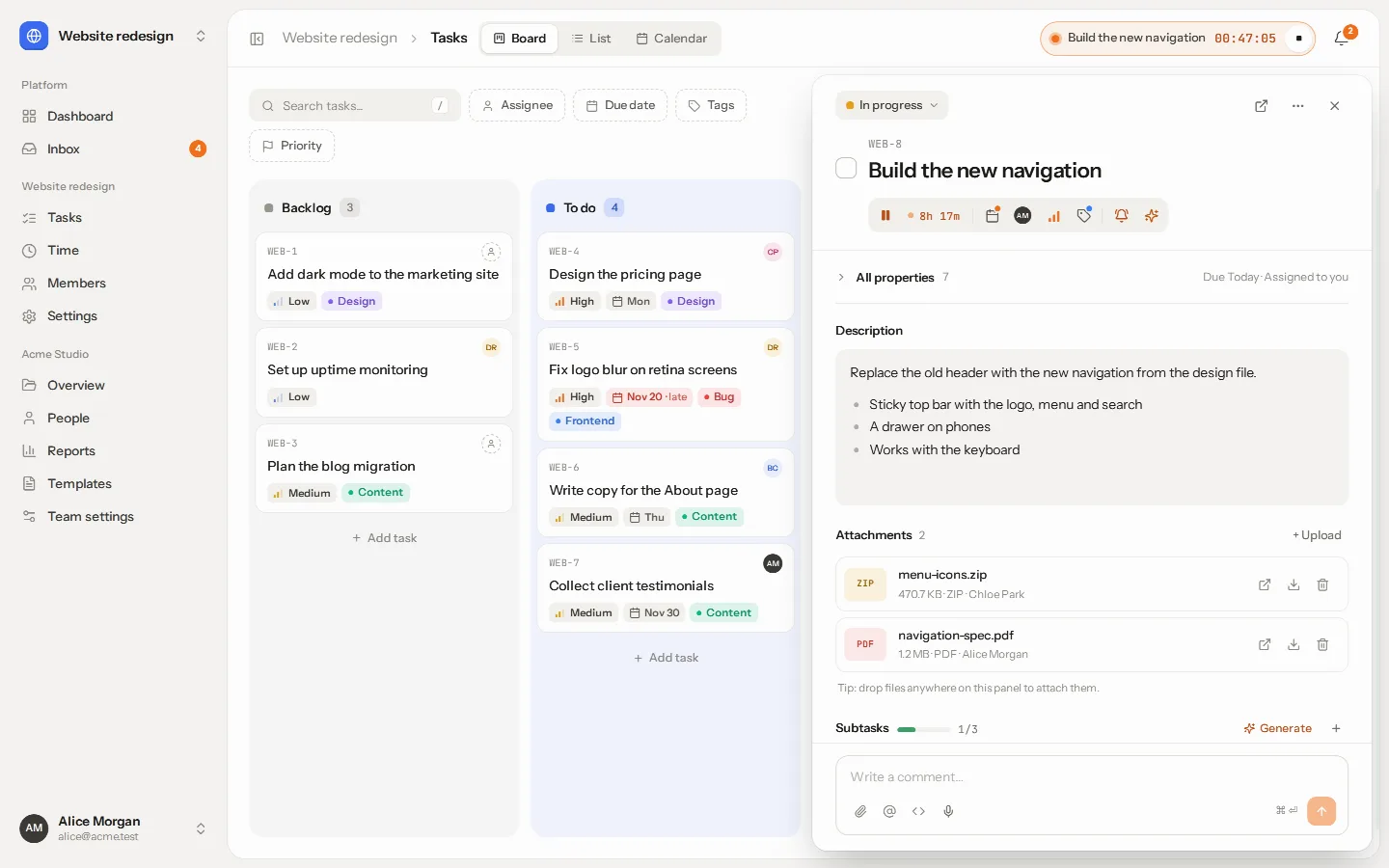
The panel shows the task's tools in a row under the title: timer, time entries, due date, assignee, priority, tags, follow, and Generate subtasks with AI. Click All properties to see every field as a list. The … menu has Copy link, Copy ID, Follow task, Move to project, Link task and Delete task.
To open the task page, click Open full page in the panel, or the arrow on a card or row. The page shows the same task with more room. Its right side holds the timer and the task's fields, followed by Link task, Move to project (for people who manage the project), Follow, Copy link and delete. Use J and K, or the arrows in the top bar, to step through the other tasks in the same list.
Changes from teammates
An open task stays up to date without a reload. When someone else comments, reacts to a comment, attaches a file, edits a field, or changes the subtasks, linked tasks or time, the side panel, the task page and the task open in the Inbox show it within a moment. Cards on the board update their comment, file and subtask counts too.
Nothing you are in the middle of gets lost. A title you are still typing stays until it is saved, the description keeps your text while you are editing it, and a comment draft or an open reply stays open.
Title and description
Click the title to edit it. The title and description save automatically as you type.
Click Add a description… to write one. A formatting toolbar appears while you write: headings, quotes, code, bold, italic, underline, strikethrough, links, images and lists. You can also type / to open a menu of things to insert, such as headings, a divider, an image or a file. For keyboard shortcuts, see Finding your way around.
To add a picture or a file, paste it or drop it into the description. An image appears in the text. Any other file appears as a chip that opens it. Both are also added to the task's files. See Comments and files.
Type @ to mention a person or a file of the task. When the description isn't being edited, clicking a link opens it. While you edit, hold ⌘ (Ctrl on Windows) and click.
Note: Mentioning someone in a description doesn't notify them. To get someone's attention, mention them in a comment.
Task fields
Set any field from the toolbar, from All properties, or from the task page.
- List: the list the task belongs to. Pick another to move the task.
- Assignee: one person on the project. Choose Unassign to clear it.
- Start date: the day work on the task starts. Pick it the same way as the due date, or choose No date to clear it. It can't be after the due date, and the due date can't be before it. The timeline draws the task from its start date to its due date.
- Due date: pick Today, Tomorrow, This weekend or Next week, or choose a day in the calendar. Choose No date to clear it. Overdue tasks show the date in red, marked "late".
- Priority: High, Medium, Low or No priority.
- Estimate: how many hours you expect the task to take. On the task page, a bar shows tracked time against the estimate.
- Tags: labels to group and filter tasks. Search for a tag, or type a new name and click Create tag. A new or edited tag takes one of the colors or, with Custom color, one of your own. Each project has its own tags. Anyone on the project can create, edit and delete them.
- Time tracked: click it to see the task's time entries. See Time tracking.
Cards and rows also show small hints when a task has a description, comments, files or subtasks.
Subtasks
Split a bigger task into smaller steps.
- Open the task.
- Click + Subtask or Add subtask.
- Type the name and press
Enter. PressEscwhen you're done.
To add several subtasks at once, paste text with more than one line into the subtask name, or click Add several subtasks at once next to it. In Add subtasks, write one subtask per line, pick the fields they share, and click Add subtasks. They're added after the subtasks the task already has.
Each subtask has its own checkbox, priority, assignee, timer and ID. The Subtasks heading shows how many are done. Drag a subtask by its handle to reorder it, and click its name to open it. Click Generate to have AI suggest subtasks. See AI assist.
Subtasks stay inside their task: they don't appear on the Board, in the List or in the Calendar, and a subtask can't have subtasks of its own.
Linked tasks
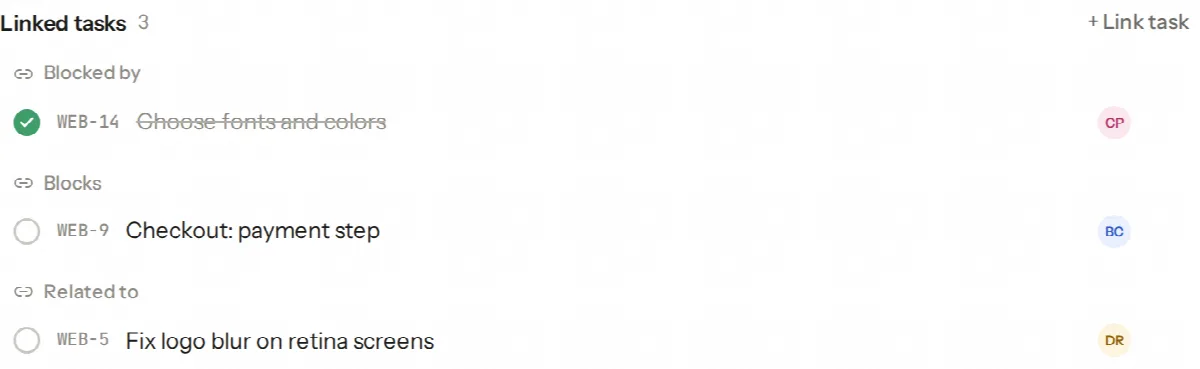
Link tasks that depend on each other or belong together, so whoever opens one sees the others. Once a task has a link, a Linked tasks section appears in the side panel and on the task page. It lists the linked tasks, grouped by how they relate.
To link a task:
- Open the task.
- In the side panel, open the … menu and choose Link task. On the task page, click Link task. When the task already has links, you can also click + Link task next to Linked tasks.
- Pick how this task relates to the other one: Related to, Blocks, Blocked by, Duplicate of or Duplicated by.
- Search for the other task by its name or number, and click it.
The other task shows the same link from its side: when this task Blocks another one, that one is Blocked by this one. Two tasks have one link at most, so picking an already linked task again with another type changes the link.
Click a linked task to open it. To remove a link, hover it and click the × button. A completed task stays in the list, crossed out. When the last link is removed, the section goes away.
You can link any task or subtask of the same project. Anyone on the project can add and remove links.
Complete and reopen a task
Tick the checkbox next to the task's title, on its card, or in its row. On a board card, you can also hover the card and click Mark as complete. Completed tasks move to the Completed section at the bottom of their list.
To reopen a task, untick its checkbox. It goes back to the end of its list's open tasks.
Move a task
To move a task to another list, pick a different List in the side panel or on the task page. You can also drag the task. See Board, list and calendar.
To move a task to another project in the same team, open the … menu in the side panel, or use the button on the task page, and choose Move to project. Pick the project and its list, then click Move task.
- The task gets a new ID in its new project.
- Its comments, files and tracked time go with it, and so do its subtasks.
- Tags stay only if the new project has a tag with the same name. The assignee and followers stay only if they're on the new project.
- The task goes to the top of the list you pick.
- Links with the old ID stop working, so share the new one.
- Its links to tasks that stay in the old project are removed. See Linked tasks.
You can move a task only to an active project of the team that you're a member of.
Only people who manage the project can move tasks to another project. A subtask can't be moved on its own; it always goes with its task.
Delete a task
- In the side panel, open the … menu and choose Delete task. On the task page, click the trash button.
- Confirm with Delete task.
Deleting a task also deletes its subtasks, comments, files and tracked time. You can't restore a deleted task from Takahe, so check before you confirm. Anyone on the project can delete a task.
Activity
Every task keeps a history of comments and changes, such as who moved it, completed it or changed its start or due date. See Comments and files.