Time and money
View as MarkdownReports
See where the time went across projects, people, lists and tasks, with money for those who manage, and export it to CSV.
Reports sum up tracked time across projects. Everyone can open them, but what you see depends on what you manage. People who manage projects see the whole team's time and money. Everyone else sees their own time and what they earned for it.
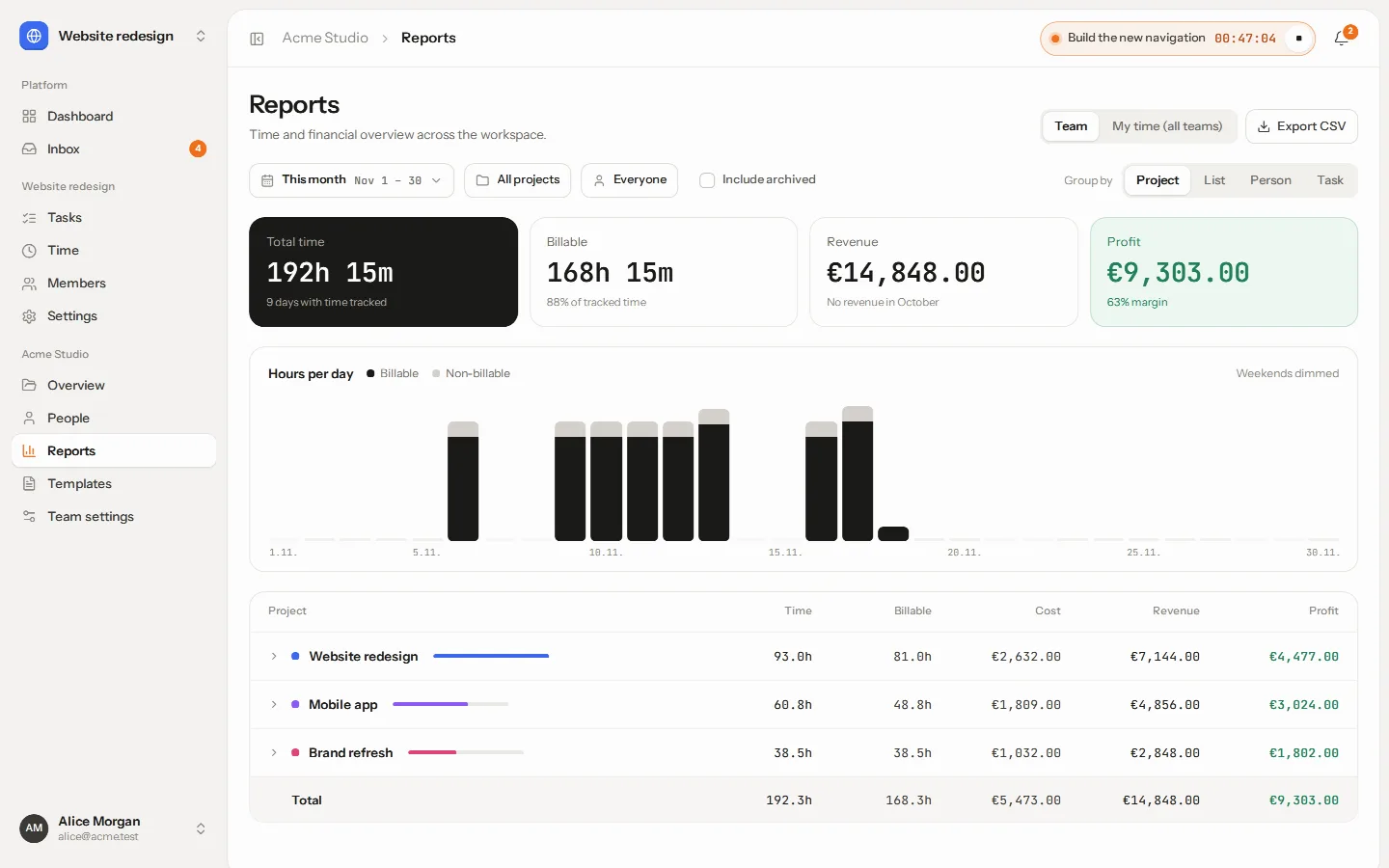
To open them, click Reports in the sidebar, in the section under your team's name.
Team view and My time
Reports have two views:
- Team: everyone's time on the projects you manage. You get this view if you manage at least one project, as its owner or as an owner or admin of its team.
- My time (all teams): your own time on every project you're a member of, in all your teams.
If you manage something, you start on Team and can switch to My time (all teams) at the top of the page. If you don't manage any project, you only have My time (all teams) and don't see the switch.
What the Team view covers
- As an owner or admin of the current team, you see all of its projects, including ones you haven't joined.
- Outside the current team, you see the projects you manage and are a member of.
- Projects where you are only a member aren't in the Team view. Your own time on them is in My time (all teams).
To see all projects of another team, switch to that team first. See Teams.
Pick the period and filters
Use the chips under the title:
- Period: This week, Last week, This month, Last month, Last 30 days, This year, or Custom range with From and To and then Apply range. Reports open on the current month.
- All projects: limit the report to one or more projects.
- Everyone: limit it to one or more people. Only in the Team view.
- All tags: limit it to entries with certain time entry tags.
- Include archived: archived projects are left out unless you tick this.
Reports count finished entries only. A running timer shows up once you stop it.
Group the results
Use Group by on the right to choose how the table is grouped. Click a row to expand it.
| Group by | Rows | Expanded rows |
|---|---|---|
| Project | Projects | People |
| List | Lists, with their project | Tasks in the list |
| Person | People (Team view only) | Their tasks |
| Task | Tasks, with their project and list | People |
Time without a task is grouped as No list or No Task. When you group by list, a task counts under the list it is in now. Moving a task to another list moves its earlier time too.
What the numbers mean
The tiles at the top show:
- Total time, and on how many days time was tracked.
- Billable: time marked billable, and its share of the total.
- In the Team view, Revenue and Profit, with the profit margin.
- In My time, Earnings: your time multiplied by your own rate.
Revenue and Earnings compare with the previous period, for example "+12% vs August".
Below the tiles, a chart shows hours per day, or per week for long periods. Billable time is dark and non-billable time is light. Weekends are dimmed.
The table shows, for each row:
- In the Team view: Time, Billable, Cost, Revenue and Profit.
- In My time: Time, Billable and Earnings.
Cost is time multiplied by each entry's cost rate, revenue is time multiplied by its bill rate, and profit is revenue minus cost. Rates are copied to each entry when it is created, so later rate changes don't change old reports. See Rates and budgets.
Export to CSV
Click Export CSV at the top of the page. The file lists every finished time entry that matches the view, period, projects, people, tags and archived setting. The grouping doesn't change the file.
| View | Columns |
|---|---|
| Team | User, Date, Project, List, Task, Description, Duration (h), Billable, Tags, Cost Rate, Bill Rate, Cost, Revenue |
| My time (all teams) | Date, Project, List, Task, Description, Duration (h), Billable, Tags, Rate, Earnings |
Durations are in decimal hours, for example 1.5. In My time, Rate is your own rate, never the client's bill rate.
The Time page of a project has its own Export CSV for that project.
Who sees what
| Project member | Manages the project | |
|---|---|---|
| Your own time | Yes | Yes |
| Other people's time | No | Yes, in the Team view |
| Person filter and Person grouping | No | Yes |
| Cost, revenue and profit | No | Yes |
| Your own earnings | Yes, in My time | Yes, in My time |
People who manage a project are its owners and the owners and admins of its team. A system administrator gets nothing extra. See Roles and permissions and who sees money.