Getting started
View as MarkdownFinding your way around
The sidebar, the project switcher, the command palette, keyboard shortcuts and live updates: how to move around Takahe quickly.
Takahe has three ways to get around: the sidebar on the left, the command palette you open with ⌘ K, and keyboard shortcuts. This page covers all three.
The sidebar
From top to bottom, the sidebar holds:
- The project switcher. It shows the project you're working in. If you belong to more than one team, the team's name appears under it. With no project picked, it says All Projects.
- Dashboard and Inbox. The number next to Inbox counts the open tasks assigned to you. See Dashboard and Inbox.
- The project section, headed by the project's name: Tasks, Time, Members, and Settings. Only people who manage the project see Settings.
- The team section, headed by the team's name. Team owners and admins see Overview, People, Reports, Templates and Team settings. Everyone else sees Reports.
- Your account menu at the bottom: Settings, Security, Notifications, Appearance, Documentation, What's new and Log out. What's new opens the changelog in a new tab: every new feature, improvement and fix, with the day it went live.
Collapse the sidebar
To make room on a smaller screen, collapse the sidebar to a column of icons. Click the sidebar button at the left end of the top bar, click the sidebar's right edge, or press ⌘ B (Ctrl B on Windows). Hover an icon to see its name. Takahe remembers your choice.
Switch projects
- Click the project switcher at the top of the sidebar.
- Type in Switch project… to narrow the list.
- Click a project.
When you switch, Takahe keeps you on the same kind of page if it can. From the Time page of one project, you land on the Time page of the next. Otherwise you land on the new project's tasks, in the view you last used for it (Board, List, Calendar or Timeline).
The switcher also lets you:
- Pick All Projects to leave the current project.
- Click the star next to a project to add it to Favorites. Favorites stay at the top of the switcher and on your dashboard.
- See your projects grouped by team, if you're in more than one team. Picking a project from another team switches the sidebar's team section to that team too. Team owners and admins see Overview → next to a team's name. A team where you're not in any project yet is listed too: members switch to it with Switch →. See Teams.
- Click Create team or New project at the bottom. See Teams and Projects.
Tip: The first nine projects in the switcher have shortcuts,
⌘ 1to⌘ 9(Ctrl 1toCtrl 9on Windows). The number is shown next to each project.
The top bar
On the left, the top bar shows the sidebar button and breadcrumbs that tell you where you are. Click any part of the breadcrumbs to go back up. On a project's task pages, the Board, List, Calendar and Timeline buttons switch the view.
On the right are the timer and the notification bell. See Time tracking and Notifications.
The command palette
Press ⌘ K (Ctrl K on Windows) on any page. Press it again, or Esc, to close. Then start typing:
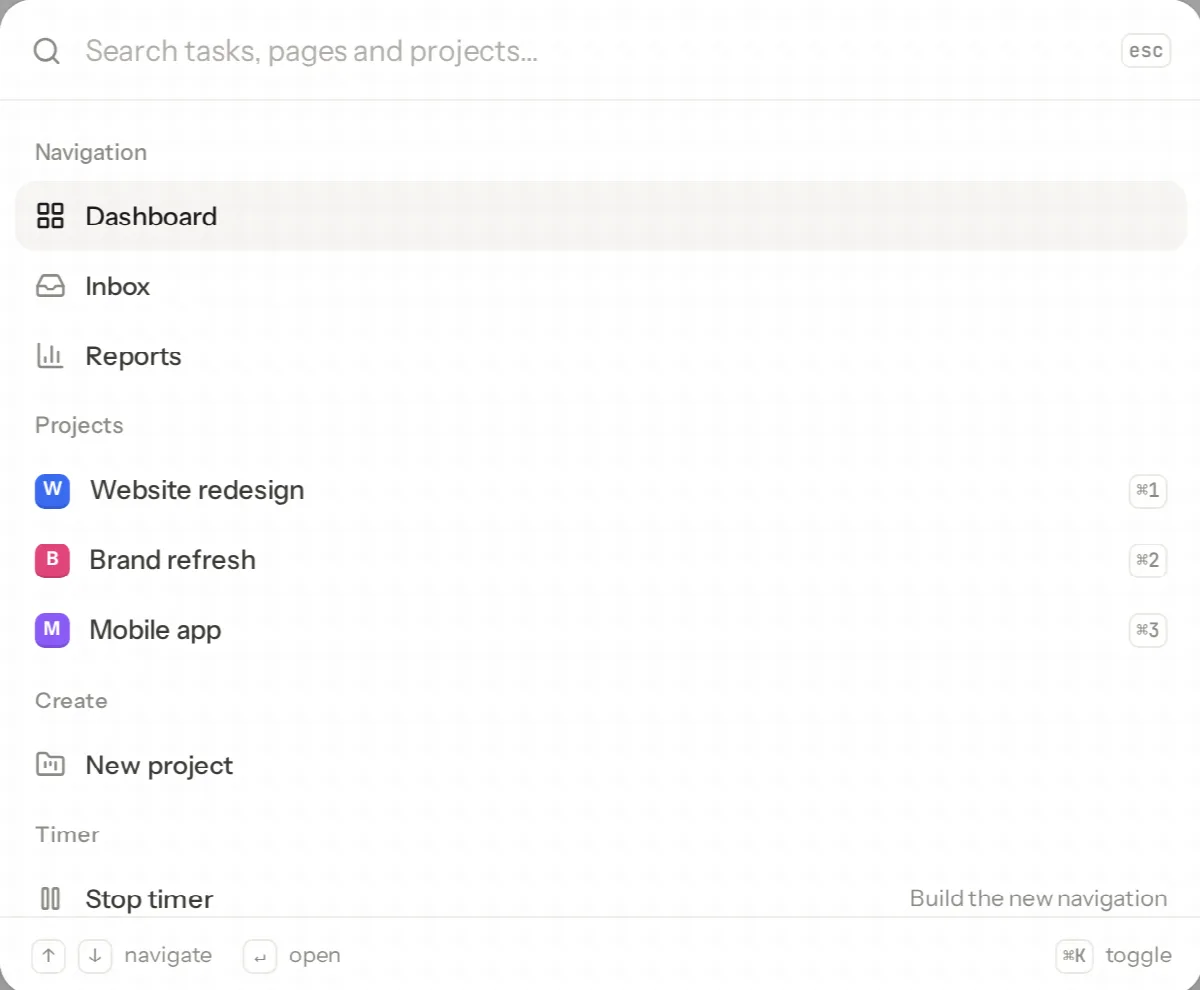
- Tasks: type two characters or more to search task titles and descriptions in all your projects, across all your teams. Type a task ID such as
WEB-12to jump straight to it. A result from another team shows that team's name. - Navigation: Dashboard, Inbox, the current project's pages, and Reports.
- Projects: switch to any of your projects. Active marks the one you're in.
- Create: add a New todo list to the current project (type its name and press
Enter), or start a New project. - Timer: Start timer on task… lists the tasks you recently tracked time on in the current project. You can also Start timer without task, or Stop timer while one runs.
Use ↑ and ↓ to move, Enter to open, and Backspace in an empty field to step back from a sub-step such as Start timer.
Keyboard shortcuts
Shortcuts that are a single letter work only when you're not typing in a field. On Windows, use Ctrl wherever you see ⌘.
| Where | Keys | What it does |
|---|---|---|
| Anywhere | ⌘ K |
Open or close the command palette |
| Anywhere | ⌘ 1 to ⌘ 9 |
Switch to one of the first nine projects |
| Anywhere | ⌘ B |
Collapse or expand the sidebar (outside a text editor) |
| Board, List, Calendar, Timeline | / |
Jump to the task search |
| Inbox | J / K |
Next / previous task |
| Inbox | E |
Mark the selected task as done |
| Inbox | O |
Open the selected task's full page |
| Task page | J / K |
Next / previous task in the same list |
| Adding a task or subtask | Enter / Esc |
Add it / cancel |
| Comment box | ⌘ Enter |
Send the comment |
| Text editor | ⌘ B, ⌘ I, ⌘ U |
Bold, italic, underline |
| Text editor | ⌘ E / ⌘ ⌥ C |
Inline code / code block |
| Text editor | ⌘ ⇧ 8 / ⌘ ⇧ 7 |
Bulleted / numbered list |
| Text editor | ⌘ ⇧ B |
Quote |
| Text editor | ⌘ Z / ⌘ ⇧ Z |
Undo / redo |
| Text editor | / |
Open the insert menu |
| Text editor | @ |
Mention a person or a file |
In an open task
These work in a task open in the side panel, in the Inbox or on its own page, whenever you're not typing in a field. Hover over a button in the task's toolbar to see its key.
| Keys | What it does |
|---|---|
A |
Assign |
D |
Due date |
P |
Priority |
T |
Tags |
L |
Move to another list |
S |
Start or stop the timer |
C |
Write a comment |
F |
Follow or unfollow |
X |
Mark done or not done |
A, D, P, T and L open their picker. In a menu, use ↑ and ↓ to move, Enter to pick and Esc to close. You can change the keys or turn them off in Account settings.
On a phone or tablet, Takahe hides the shortcut hints.
Live updates
You don't need to reload to see your teammates' work. When someone adds, edits or deletes a task, the Board, List, Calendar and Timeline update on your screen within moments. On the Board and in the List, you also see teammates drag tasks and lists into a new order. A list sorted by anything other than Manual keeps its sort, and a task that lands in it takes its place in that order. New notifications appear in the bell as they arrive. Other pages, such as the dashboard, show the latest state each time you open them.