Tasks
View as MarkdownBoard, list, calendar and timeline
The four views of a project's tasks, how to create, sort and arrange todo lists, and what drag and drop does in each view.
A project's tasks live in todo lists, such as To Do, In Progress and Done. You can look at them in four ways: as a board, as a list, on a calendar, or on a timeline.
Switch between views
Open a project's Tasks and use the Board, List, Calendar and Timeline buttons in the top bar. All four show the same tasks, and Takahe remembers which view you last used for each project.
The views show tasks, not subtasks. Subtasks appear inside their task. Above every view you'll find the task search, the filters and the number of tasks. See Filters and search.
Board
On the board, each list is a column. Scroll sideways to see more lists.
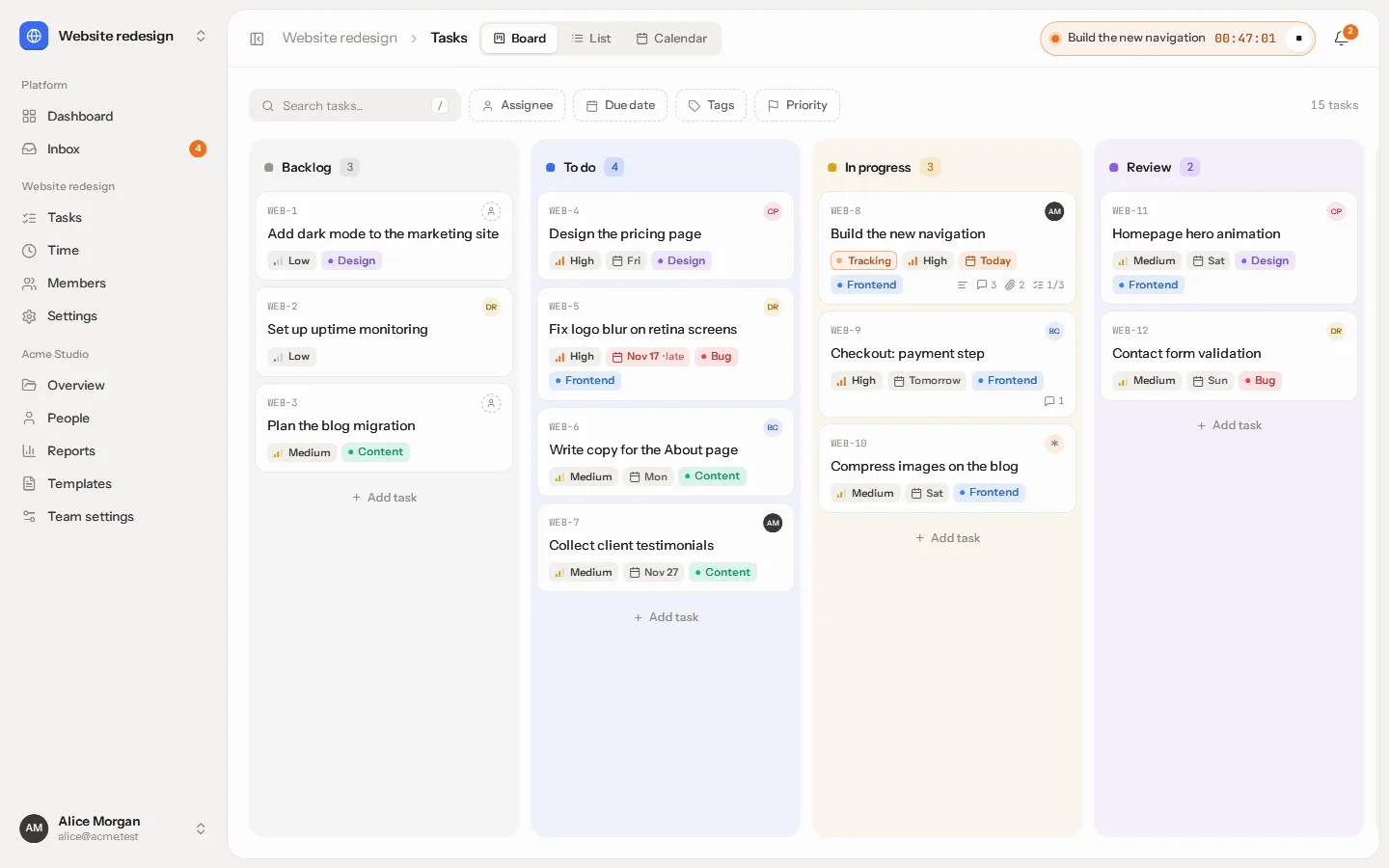
The column header shows the list's color, its name and how many open tasks it has. When every task in the list is done, the count turns into a green check with the number of completed tasks. On the right are List settings (…) and +, which adds a task to the top of the list.
Each card shows the task's ID, assignee, title, priority, due date and tags, plus a few small hints:
- A running timer, if someone is tracking time on the task.
- Icons when the task has a description, comments, files or subtasks. Subtasks show as done out of total. The counts update as teammates add or remove them, without a reload.
You can change a few things right on the card. Click the avatar to change the assignee, click the due date to change it, or click the × on a tag to remove it. Hover a card for more tools: Mark as complete, the timer, due date, priority, tags and Open detail.
Click a card to open the task in the side panel. See Tasks.
List
The List view stacks your lists one under another, with the columns ID, Task, Tags, Due, Priority and Who. On narrower screens, some columns are hidden.
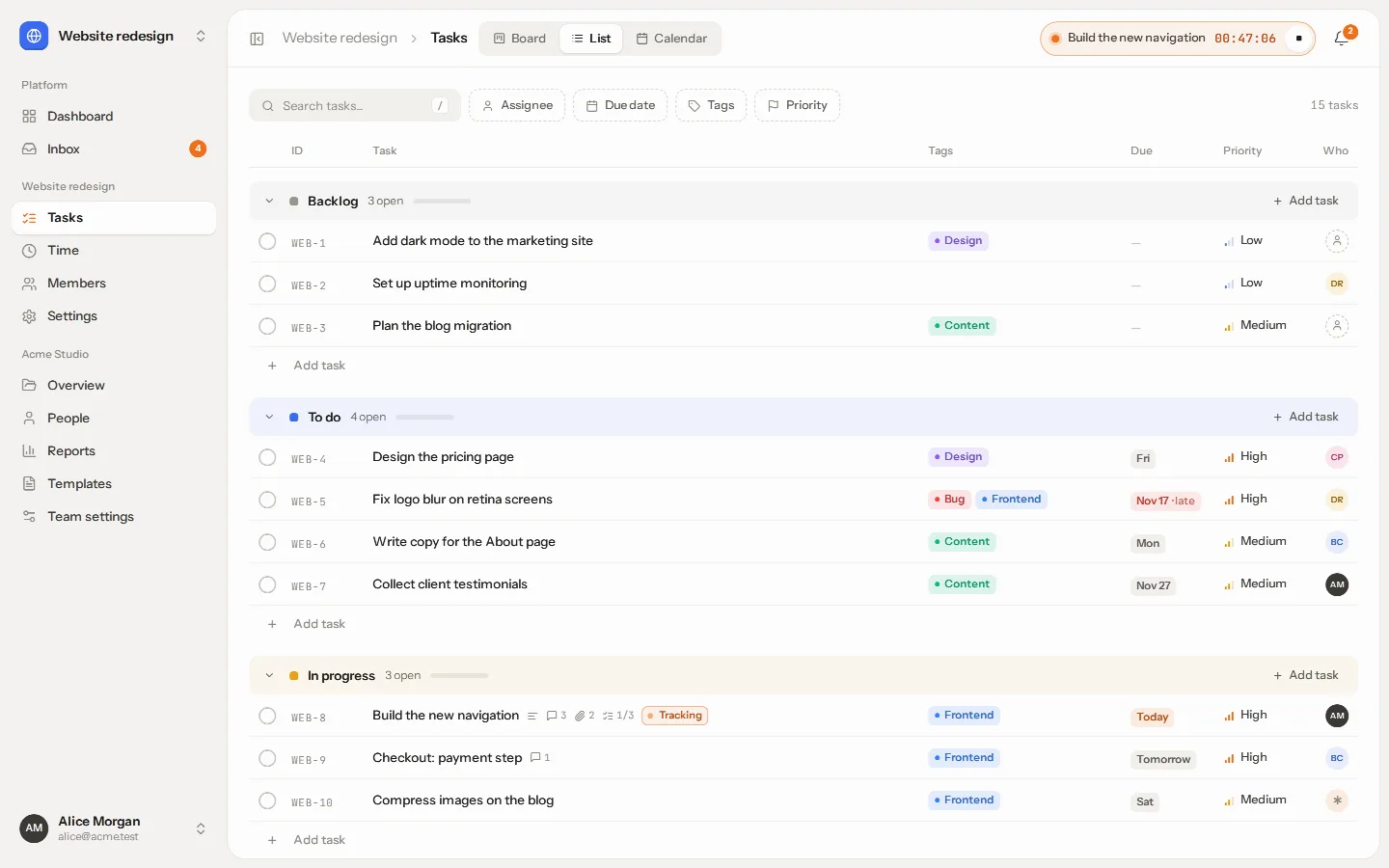
Each list's header shows its name, how many tasks are open and done, and a progress bar. Click the arrow at the left to collapse a list, and click it again to expand it. Takahe remembers collapsed lists in this browser. On the right are List settings and Add task.
Tick a row's checkbox to complete the task. Click the due date or the avatar to change them. Hover a row for more tools: the timer, due date, priority, tags, Copy ID and Open detail. Click a row to open the task in the side panel.
Calendar
The calendar shows a month of tasks with a due date, from Monday to Sunday. Use Today and the arrows to move between months. Each task is shown in its list's color.
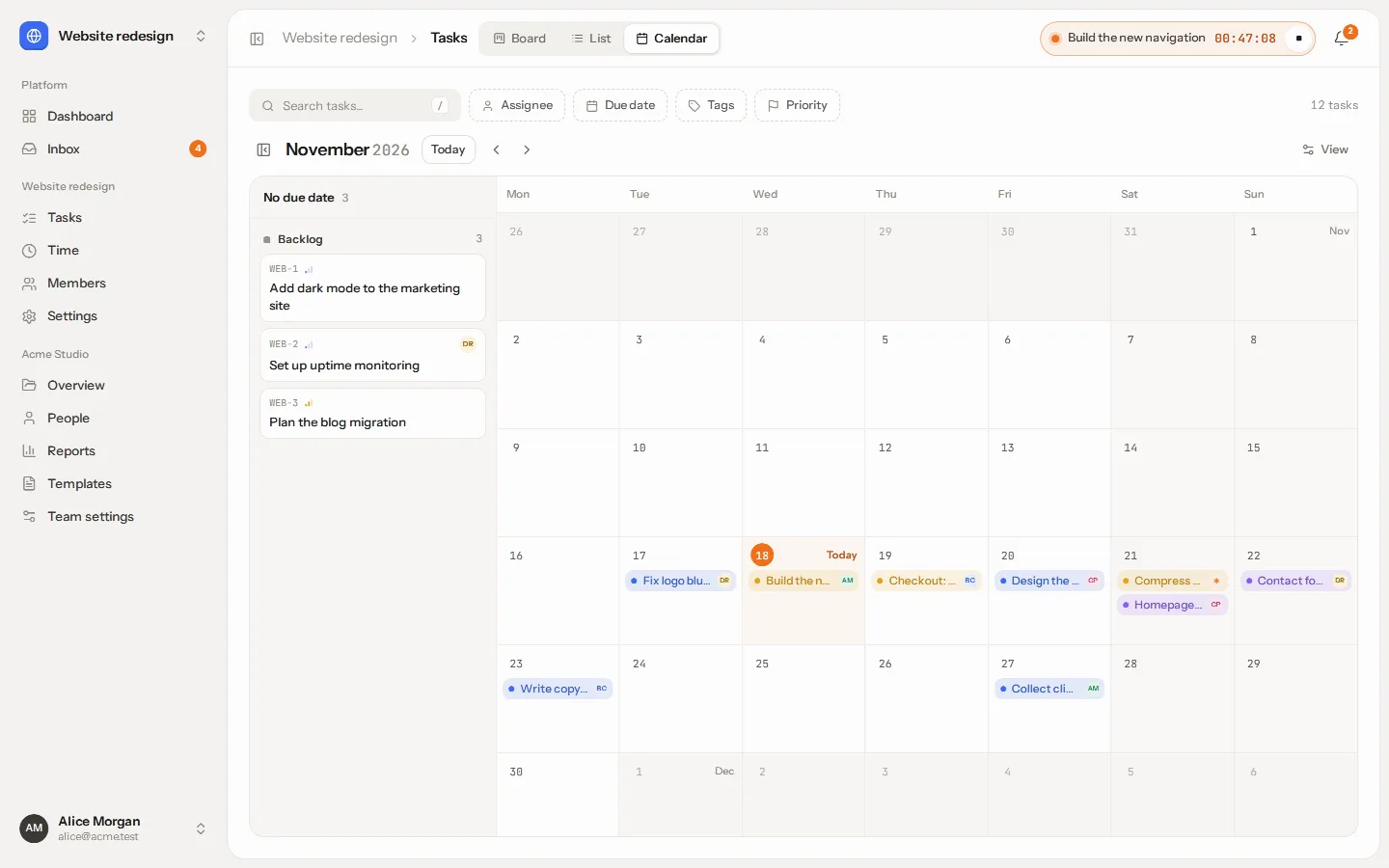
- The No due date panel on the left lists tasks without a due date, grouped by list. Drag one onto a day to give it that due date. Click Hide panel to make room for the month.
- Drag a task to another day to change its due date.
- Click a task to open it in the side panel. To remove a due date, choose No date in the task's due date picker.
- Open View to choose what to show: the To-Do list name on each task, Completed tasks, and the Weekend. Takahe remembers these settings for each project in this browser.
You can't add tasks from the calendar. Add them on the board or in the list, then give them a due date.
Timeline
The Timeline (a Gantt chart) draws each task as a bar from its start date to its due date, so you can see who is busy when, and what comes after what. Tasks are grouped by list, in the order of the lists, and sorted by their start date within each list.
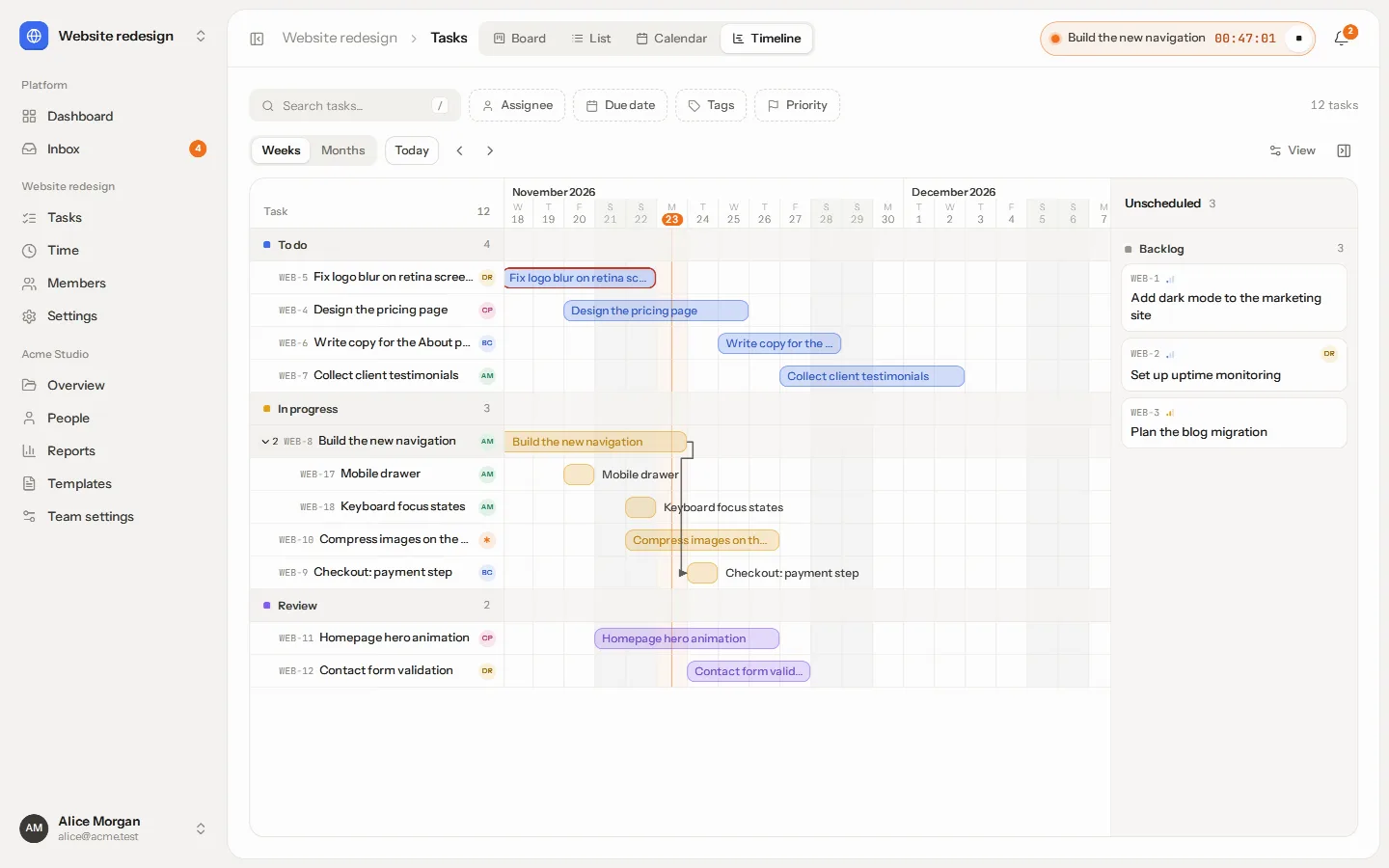
- Switch between Weeks and Months to zoom, and click Today to jump to today. The arrows scroll four weeks at a time. Takahe remembers the scale for each project in this browser.
- A task with only a start date or only a due date is a one-day bar. Tasks without either are in the Unscheduled panel on the right, grouped by list. Click Hide Unscheduled to make room.
- Drag a bar to move the task. Both of its dates move together, by whole days. Drag the left or right edge of a bar to change only its start date or its due date.
- Drag a task from Unscheduled onto a day to make that day both its start and its due date. Then drag an edge to stretch the bar.
- An arrow runs from a task that blocks another one to the task it blocks. It turns red when the blocked task starts before the blocking task ends. Takahe doesn't move tasks for you. To link tasks, see Linked tasks.
- Subtasks stay folded under their task. Click the arrow and the number at the left of a task to show its subtasks that have dates.
- Click a task or a bar to open the task in the side panel, where you set its Start date and Due date too.
- Open View to show Completed tasks.
Takahe saves a new date right away, and your teammates see the bar move without reloading. If a change can't be saved, for example because the start would come after the due date, the bar jumps back and a message tells you why.
Everyone on the project sees the timeline, and anyone who can edit tasks can drag bars. In an archived project the timeline is read-only, which a lock at the top tells you. On a phone you can scroll the timeline sideways, but you can't drag bars.
Todo lists
Every task belongs to exactly one list. Lists are shared by everyone on the project, and anyone on the project can create, rename, sort, reorder and delete them.
Create a list
- Click New list at the end of the board or at the bottom of the List view.
- Type a name, or click one of the Quick names: Backlog, To Do, In Progress, In Review or Done.
- Pick a Color, or click Custom color to pick your own. See Custom colors.
- Click Create list.
You can also create a list from the command palette with New todo list. See Finding your way around.
Rename or recolor a list
- Rename: double-click the list's name, or open List settings and choose Rename. Type the new name and press
Enter. PressEscto cancel. - Recolor: open List settings and pick one of the ten colors under Color, or choose Custom color… to pick your own.
Sort a list
By default you arrange tasks yourself. To sort a list automatically, open List settings, choose Sort, and pick one:
- Manual: your own order, set by dragging.
- Priority: high to low.
- Due date: earliest first. Tasks without a due date come last.
- Created: newest first.
- Title: A to Z.
Pick the same option again to reverse the order. The sort applies for everyone on the project. On the board, a small icon next to the list's name shows that the list is sorted.
Delete a list
- Open List settings and choose Delete list. The menu shows how many tasks the list holds.
- Choose what happens to its tasks:
- Move them to another list, then pick the list. The tasks keep their comments, files and tracked time.
- Delete them with the list. Their comments, files and tracked time are deleted too.
- Click Move tasks and delete or Delete list and tasks.
Drag and drop
- On the board, drag a card up or down to change its place, or onto another column to move it to that list. Drag a column by its name to reorder the lists.
- In the List view, drag a row within its list or into another list. Drag a list by its name to reorder the lists.
- In the calendar, drag tasks onto days to set their due date.
- On the timeline, drag bars to move a task or stretch it, and drag tasks from Unscheduled onto days to set their dates.
The new order is saved for everyone, and teammates see it on the Board and in the List without reloading. Dragging never completes or reopens a task, so use the checkbox for that.
Tasks in a list sorted by anything other than Manual can't be dragged, because the sort decides their order. To move one of them to another list, change its List in the side panel.
On a phone or tablet, press and hold a card for a moment, then drag it. A quick swipe scrolls the board instead.
Completed tasks
Each list ends with a Completed section. It shows the three most recently completed tasks. To see the rest, click the row that says how many are left, such as Show 12 more. Click Show less to fold them back. Click the Completed heading to hide or show the whole section. On the board it starts open, and in the List view it starts closed.
To reopen a task, untick its checkbox. It moves back to the list's open tasks.