Account
View as MarkdownTakahe on your phone
Add Takahe to your phone's home screen, and see how adding tasks, pickers, the board and filters work on a small touch screen.
Takahe works in your phone's browser, with no app store download. Add it to your home screen and it opens like an app: full screen, without the browser's address bar, starting on your dashboard.
Add Takahe to your home screen
iPhone and iPad
- Open Takahe in Safari and sign in.
- Tap the Share button.
- Tap Add to Home Screen. You may need to scroll down to find it.
- Tap Add.
Tip: Add Takahe while no timer is running. Your iPhone saves the icon as it looks at that moment, and while a timer runs, the icon carries a red dot.
Android
- Open Takahe in Chrome and sign in.
- Tap the menu (⋮) at the top right.
- Tap Add to Home screen or Install app, depending on your version of Chrome, and confirm.
After you add it
Tap the Takahe icon to open it. If it asks you to sign in the first time, sign in once.
The app has no browser toolbar, so use the sidebar and the breadcrumbs at the top to move around. The phone's status bar follows Takahe's light or dark theme. To change the theme, see Account settings.
Move around on a small screen
- Tap the menu button at the top left to open the sidebar. Tap a page and the sidebar closes again.
- Tap the project at the top of the sidebar to open Switch project. Search, pick All Projects, tap a star to add a favorite, or use Create team and New project at the bottom. Tap the back arrow to return to the menu.
- Keyboard shortcut hints are hidden on touch screens.
For everything else in the sidebar, see Finding your way around.
Add a task
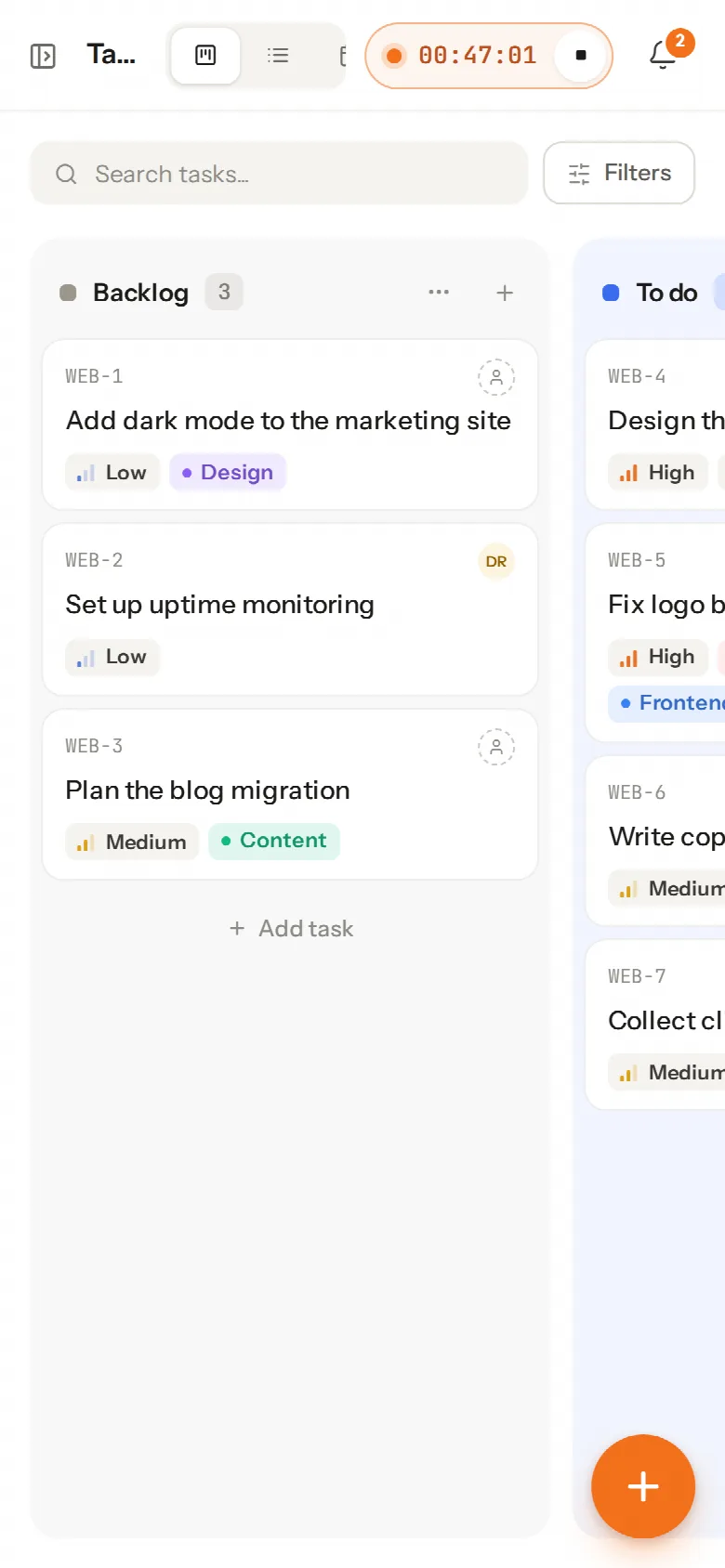
On the Board and in the List view, tap the round + at the bottom right.
- In Add task to…, pick the list for the new task. If the project has only one list, Takahe skips this step.
- Type the title and set any other fields.
- Tap Add on the board, or Add task in the List view.
On the board, the form opens at the top of the screen as New task in followed by the list's name, so the keyboard doesn't cover it. The task goes to the top of the list. If you tap outside the form after typing a title, the form stays open, so you won't lose what you wrote. In the List view, the list's own add form opens instead.
You can also tap the + in a board column's header. On a phone, the + and … buttons in column headers are always visible.
From the dashboard, New task and Dictate add a task to any project. See Tasks.
Pickers open from the bottom
In an open task, when you change its list, assignee, priority, due date or tags, the choices slide up from the bottom of the screen in large rows that are easy to tap. Long lists scroll inside the panel. Due dates and tags open this way everywhere, and so do the pickers in the + button's form.
The assignee and priority buttons on a board card, in a list row and in a column's add-task form still open a small menu next to the button.
The keyboard stays hidden until you tap a field that needs it, such as the tag search. Tap outside the panel to close it without changing anything.
Board, list and calendar
- Board: swipe sideways to move between lists. To move a card, press and hold it for a moment, then drag it. A quick swipe scrolls the board instead.
- List: when a project has two or more lists, a row of buttons at the top shows each list with its number of open tasks. Tap one to jump to that list.
- Calendar: the month scrolls sideways. The No due date panel isn't shown on a phone, so set a due date from the task itself.
- Tasks: a task you open fills most of the screen. Close it to get back to the board.
See Board, list, calendar and timeline for how the views work.
Filters
To save space, the search box shares one row with a Filters button, and the task count is hidden. Tap Filters to show or hide the filter chips. When filters are on, the button shows how many. See Filters and search.
Inbox
In the Inbox, tap a task to see its details. They replace the list. Tap Assigned to me to go back to the list. See Dashboard and Inbox.
Pull to refresh
On phones and tablets, pull down from the top of a page to reload it. This works on pages that scroll as a whole. In the Inbox and inside board columns, which scroll on their own, pulling down just scrolls.
On computers, pull to refresh is turned off, so a trackpad swipe can't reload the page by accident.
Good to know
- Takahe needs an internet connection. It doesn't work offline.
- The home screen app doesn't send push notifications. Check the bell in the top bar for news. See Dashboard and Inbox.