AI and integrations
View as MarkdownWebhooks
Send a project's changes to your own app or automation as signed JSON, a few seconds after they happen.
A webhook sends a project's changes to a URL you choose. Each time someone adds a task, moves it, comments or tracks time, Takahe sends a short JSON message to that URL. Use it to update another tool, post to a chat or start an automation.
Webhooks belong to one project. Project owners and team owners and admins can add them.
What a webhook sends
When you add a webhook, you choose which kinds of changes it sends:
- Tasks: created, changed, moved, completed, deleted or restored, subtasks included.
- Comments: written, edited or deleted.
- Files: attached to a task or deleted.
- Time entries: tracked, edited or deleted.
- Lists: created, renamed or deleted.
- Tags: created, renamed or deleted.
Each message names its event as kind.action, for example task.created or task_comment.updated. The kinds are task, task_comment, task_attachment, time_entry, todo_list and tag. The actions are created, updated, deleted, restored and force_deleted (deleted for good).
A webhook never sends:
- rates, costs or budgets, even for time entries (a change that touched only a rate isn't sent at all),
- changes to the project's own settings, its members or invitations,
- anything from other projects.
Add a webhook
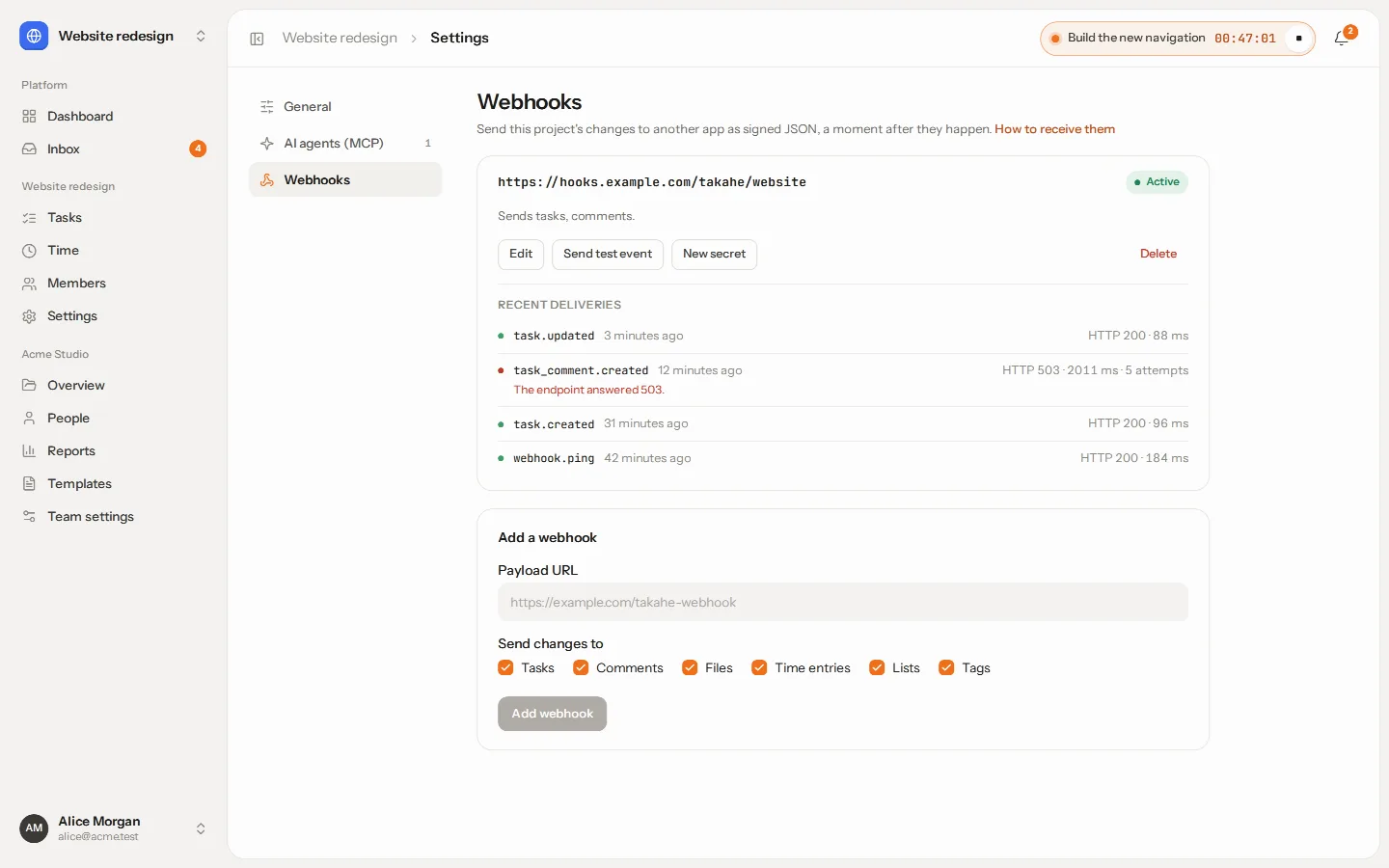
- Open the project's Settings and go to Webhooks.
- Enter the Payload URL. It must start with
https://and point to a public address on the internet. - Under Send changes to, tick the kinds of changes you want.
- Click Add webhook.
- Copy the signing secret right away. It is shown only once. Your endpoint needs it to check that messages come from Takahe.
A project can have up to 10 webhooks.
The message
Takahe sends a POST request with a JSON body and these headers:
X-Takahe-Event: the event, for exampletask.updated.X-Takahe-Delivery: a unique ID of this message. It stays the same when the message is sent again.X-Takahe-Signature: the signature, see Check the signature.
The body looks like this:
{
    "id": "1f0b6c52-6a1e-4d8e-9a54-1c1f0e8d2b7a",
    "event": "task.updated",
    "occurred_at": "2026-11-20T14:03:12+00:00",
    "channel": "web",
    "project": { "id": 12, "name": "Website redesign", "prefix": "WEB" },
    "actor": { "id": 7, "name": "Alice Morgan", "is_agent": false },
    "subject": {
        "type": "task",
        "id": 431,
        "label": "WEB-182 · Build the new navigation"
    },
    "task": {
        "id": 431,
        "identifier": "WEB-182",
        "title": "Build the new navigation",
        "url": "https://tracklo.vocalio.sk/tasks/WEB-182",
        "list": { "id": 40, "name": "In progress" },
        "is_done": false,
        "priority": "high",
        "start_date": "2026-11-24",
        "due_date": "2026-11-28",
        "assignee": { "id": 7, "name": "Alice Morgan", "is_agent": false },
        "parent": null,
        "is_deleted": false
    },
    "changes": {
        "old": { "todo_list_id": 39 },
        "new": { "todo_list_id": 40 }
    }
}
idis the same as theX-Takahe-Deliveryheader.channelsays where the change came from:web(Takahe in the browser),mcp(an AI agent),extension(the Chrome extension), orqueueandconsole(Takahe itself, for example an import).actoris who made the change.is_agentistruefor an AI agent. It'snullwhen Takahe made the change on its own.subjectis what changed: a task, a comment, a file, a time entry, a list or a tag.taskis the task as it is when the message is sent. It'snullfor lists and tags, and when the task was moved to another project before the message went out.changesholds the fields before and after. A new item has onlynew, a deleted one onlyold, and a change has just the fields that changed. Text such as a task description or a comment is HTML.
Check the signature
Every message is signed with the webhook's secret, so you can reject messages that don't come from Takahe. The X-Takahe-Signature header looks like t=1795200581,v1=5257a8…, where t is the time of sending as a Unix timestamp and v1 is the signature.
- Read the raw request body, before any JSON parsing.
- Join
t, a period and the raw body:1795200581.{"id":…}. - Compute an HMAC with SHA-256 of that text, using the signing secret as the key, as a hexadecimal string.
- Compare it with
v1using a constant-time comparison. - Reject the message if
tis more than five minutes old, so a captured message can't be replayed later.
In PHP:
$body = file_get_contents('php://input');
parse_str(str_replace(',', '&', $_SERVER['HTTP_X_TAKAHE_SIGNATURE'] ?? ''), $signature);

$expected = hash_hmac('sha256', ($signature['t'] ?? '').'.'.$body, getenv('TAKAHE_WEBHOOK_SECRET'));

if (! hash_equals($expected, $signature['v1'] ?? '') || abs(time() - (int) ($signature['t'] ?? 0)) > 300) {
    http_response_code(401);
    exit;
}
In Node.js:
import { createHmac, timingSafeEqual } from 'node:crypto';

function isFromTakahe(rawBody, header, secret) {
    const { t, v1 } = Object.fromEntries(
        header.split(',').map((part) => part.split('=')),
    );
    const expected = createHmac('sha256', secret)
        .update(`${t}.${rawBody}`)
        .digest('hex');

    return (
        v1?.length === expected.length &&
        timingSafeEqual(Buffer.from(v1), Buffer.from(expected)) &&
        Math.abs(Date.now() / 1000 - Number(t)) < 300
    );
}
Deliveries and retries
Your endpoint has 10 seconds to answer. Any 2xx status counts as delivered.
- If the endpoint answers with another status or doesn't answer in time, Takahe tries again after 10 seconds, 1 minute, 5 minutes and 15 minutes. After the fifth attempt, the delivery has failed.
- Redirects aren't followed. Use the final URL.
- Takahe reads at most 1 MB of the answer. A longer answer counts as a failure, so keep it short.
- A message can arrive more than once, for example when your endpoint was slow to answer. Use
X-Takahe-Deliveryto skip one you have already handled. - Messages can arrive out of order. Use
occurred_atto sort them.
Each webhook shows its Recent deliveries: the event, when it happened, the HTTP status, how long the endpoint took and, for a failure, why. Deliveries are kept for 30 days.
When a webhook pauses
After 10 failed deliveries in a row, the webhook pauses and shows Paused after 10 failed deliveries. Nothing is sent while it's paused. Fix the endpoint, then turn the webhook back on:
- Click Send test event to check that the endpoint works again.
- Click Edit.
- Switch on Send changes to this URL and click Save.
Test, change or delete a webhook
- Send test event sends a
webhook.pingmessage, even to a paused webhook. Its result appears under Recent deliveries a moment later. - Edit changes the URL and the kinds of changes, and turns the webhook off or on. The secret stays the same. You can turn a webhook off even when its address no longer works.
- New secret makes a new signing secret and shows it once. The old secret stops working right away, so update your endpoint at the same time.
- Delete stops the webhook and deletes its delivery history.
Who can manage webhooks
Project owners and team owners and admins can add, change and delete a project's webhooks. Members can't see them.
A webhook lives only as long as the person who added it manages the project. When a team admin who added a webhook is removed from the team, loses the admin role or deletes their account, their webhooks are deleted, unless they still own the project. See Roles and permissions.