Getting started
View as MarkdownDashboard and Inbox
Your daily overview, the Inbox of tasks assigned to you, and how notifications, mentions and following a task work.
The dashboard is your starting point each day. The Inbox lists everything assigned to you. Notifications tell you what changed on the tasks you care about.
The dashboard
The dashboard opens when you sign in. At the top, a short summary tells you how many tasks are overdue or due today, and how many conversations are waiting for you. Next to it are three buttons:
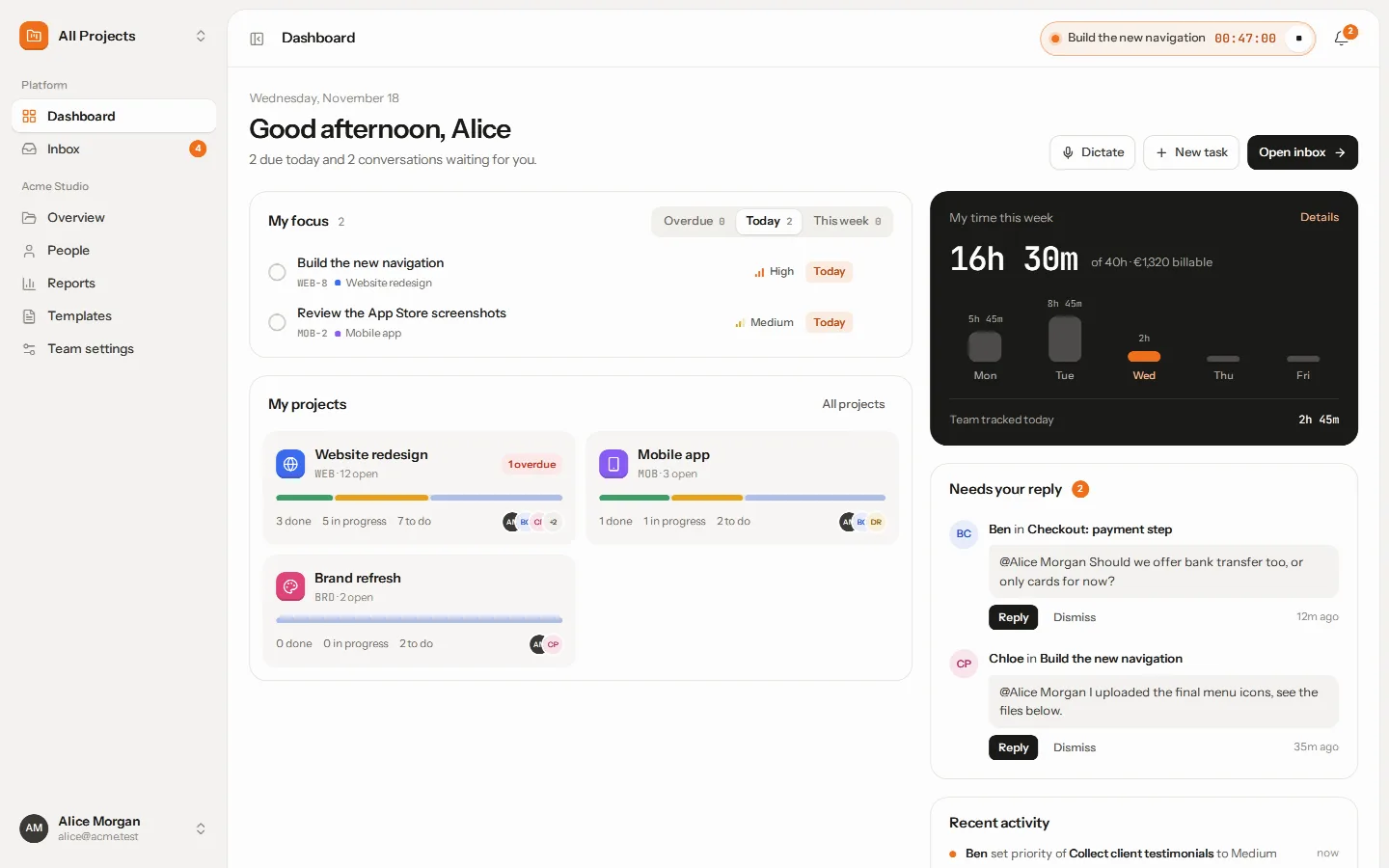
- Dictate and New task create a task in any of your projects. See Tasks and AI assist.
- Open inbox takes you to the Inbox.
If you're new, a Getting started checklist walks you through your first steps. Click Hide to dismiss it. It also goes away once every step is done.
My focus
Open tasks assigned to you, in three tabs:
- Overdue: the due date has passed.
- Today: due today.
- This week: due in the next six days.
Tick the checkbox to complete a task, or click it to open it. On a larger screen, hover a task to start a timer on it. Tasks without a due date don't appear here, but you'll find them in the Inbox.
My projects
Up to six of your active projects. Favorites come first, then the projects where you have the most open tasks. Each tile shows the project's open and overdue tasks, a progress bar of done, in progress and to-do tasks, and who works on it. Click a tile to open the project's tasks.
"In progress" counts open tasks in lists whose name contains "progress", "doing" or "review", such as In Progress or In Review.
Team owners and admins also see All projects, which opens the team overview.
My time this week
Your tracked time this week, measured against a 40-hour week, with a bar for each day. Time on archived projects isn't counted. It also shows your billable time. If you manage projects, you see it as an amount of money for the projects you manage. Everyone else sees hours. Details opens the Time page.
If you manage projects in the current team, Team tracked today shows everyone's time on those projects today. See Time tracking and Rates and budgets.
Needs your reply
Conversations waiting for you: unread mentions, replies to your comments, and new comments on tasks you follow. The card lists the three newest, and the badge counts them all.
- Reply opens the task so you can answer, and marks the notification as read.
- Dismiss marks it as read without opening the task.
Recent activity
The latest changes across your active projects: new tasks, completed and reopened tasks, moves between lists, and changes to the assignee, due date, priority or estimate.
The Inbox
The Inbox, titled Assigned to me, lists every open task assigned to you in all your active projects. Subtasks and tasks in archived projects aren't included.
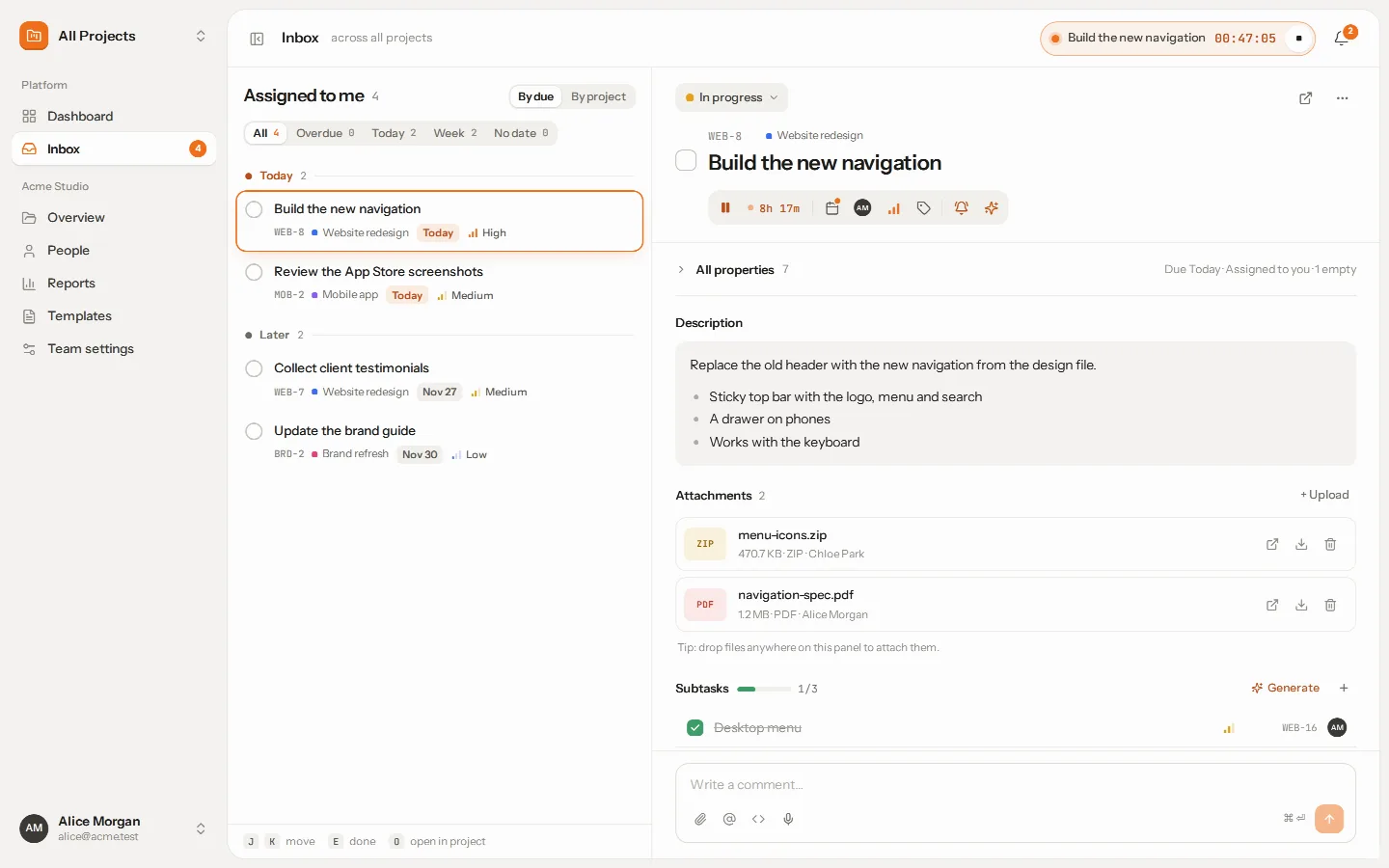
- Group the tasks By due (Overdue, Today, This week, Later, No due date) or By project.
- Filter with All, Overdue, Today, Week (due from today to Sunday) or No date. Each filter shows how many tasks it holds.
- Click a task to see its details on the right. On a computer, the first task is already selected when the Inbox opens. You can edit it, move it to another list with the list button at the top, comment and track time there, just like in the side panel.
- Tick the checkbox to complete a task. The next task moves into its place.
- Drag the divider between the list and the details to resize them.
You can also use the keyboard: J and K move through the list, E marks the selected task as done, and O opens its full page.
On a smaller screen, the details replace the list. Tap Assigned to me to go back.
Notifications
The bell in the top bar shows how many unread notifications you have. Click it to open the panel:
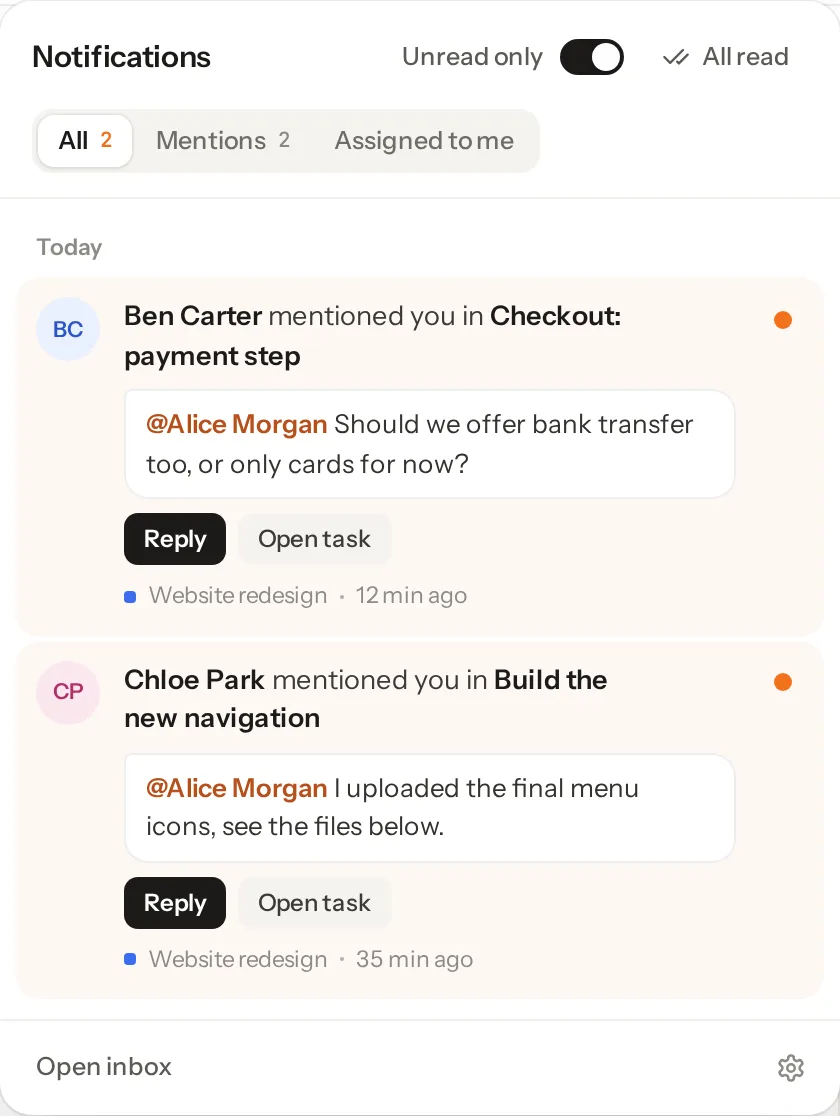
- Unread only is on by default. Turn it off to see older notifications too.
- All read marks everything as read.
- The tabs All, Mentions and Assigned to me narrow the list.
- Click a notification to open its task. This also marks it as read. Hover a notification and click Mark as read or Mark as unread to change it without opening the task.
- Mentions and replies show the comment, with Reply and Open task buttons.
- Open inbox at the bottom takes you to the Inbox. The gear opens your notification settings.
Notifications show up as they happen, without a reload.
What sends you a notification
You get notified about changes to tasks you follow, plus anything aimed at you directly:
| Notification | When |
|---|---|
| Task assigned | Someone assigns you a task |
| Task completed | A task you follow is completed |
| Task moved | A task you follow moves to another list |
| Assignee changed | The assignee of a task you follow changes |
| Due date changed | The due date of a task you follow changes |
| Priority changed | The priority of a task you follow changes |
| Subtask added | Someone adds a subtask to a task you follow |
| New comment | Someone comments on a task you follow |
| Comment reply | Someone replies to your comment |
| Mentioned | Someone @mentions you in a comment |
| New attachment | Someone attaches a file to a task you follow |
A few rules keep the noise down:
- You never get notified about your own changes.
- Only people who are still on the project get notified.
- A comment that mentions you or replies to you arrives once, as Mentioned or Comment reply, not again as New comment.
- Changes of the same kind to one task within half an hour are combined into one notification, for example "Alice and 2 others", as long as you haven't read it yet.
If you manage a project with a budget, you're also notified when it reaches a threshold. See Rates and budgets.
Follow or unfollow a task
You follow a task automatically when you create it, when it's assigned to you, when you comment on it, and when someone mentions you in a comment on it.
To follow or unfollow a task yourself:
- In the side panel, click the bell button in the task's toolbar, or open the … menu and choose Follow task or Unfollow task.
- On the task page, click Follow or Following. The Followers row shows who follows the task.
Choose which notifications you get
- Open your account menu at the bottom of the sidebar and choose Notifications, or click the gear in the notification panel.
- Switch off the types you don't want.
- Turn on Do Not Disturb to hide the unread badge. Notifications are still saved, so you can read them later.
- Click Save preferences.