Every task in one place, on a board, a list or a calendar.
Plan a project the way your team thinks about it. Drag cards across the board, sort and filter the list, or check deadlines on the calendar. It’s the same tasks in every view.
Already have an account? Log in
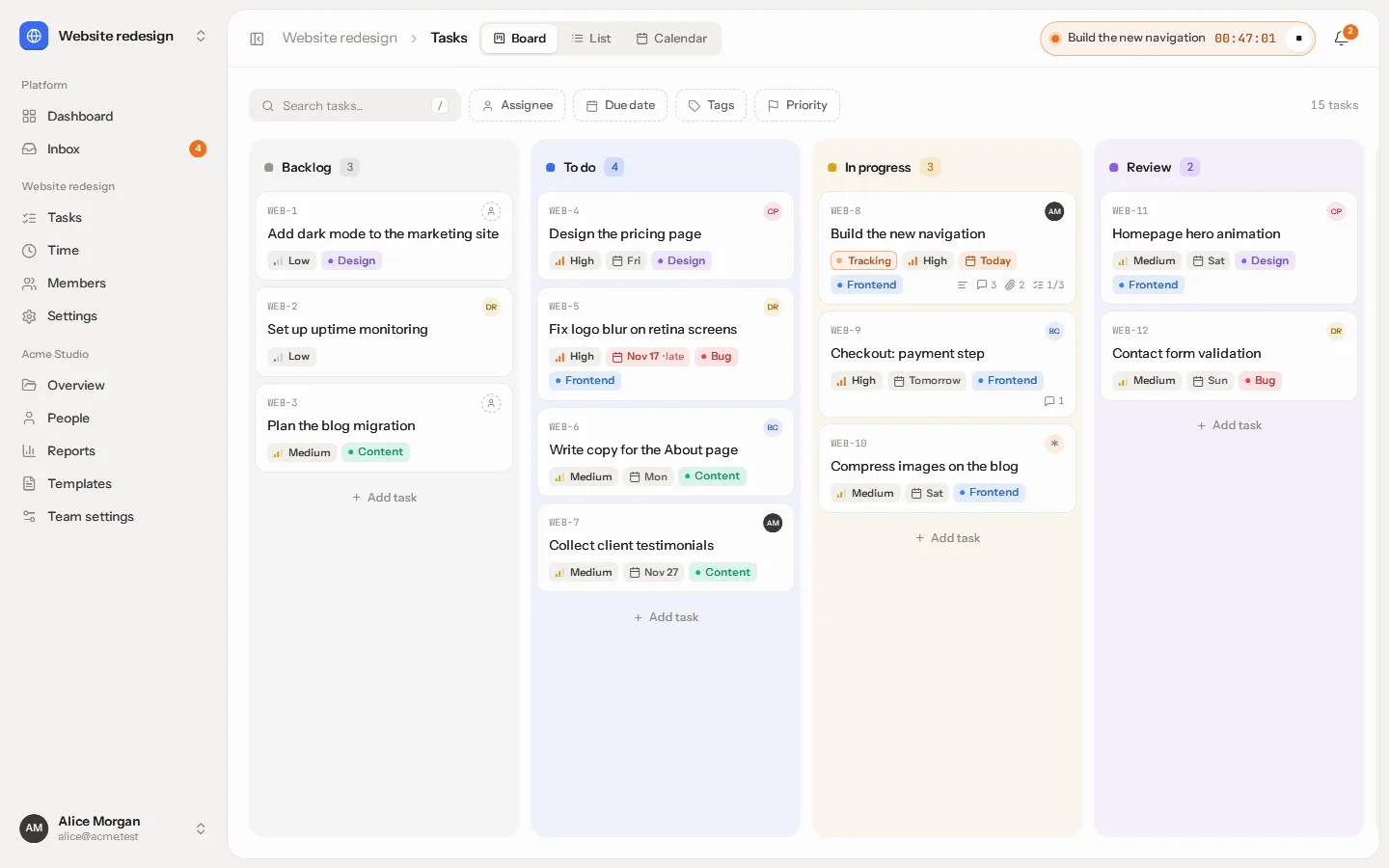
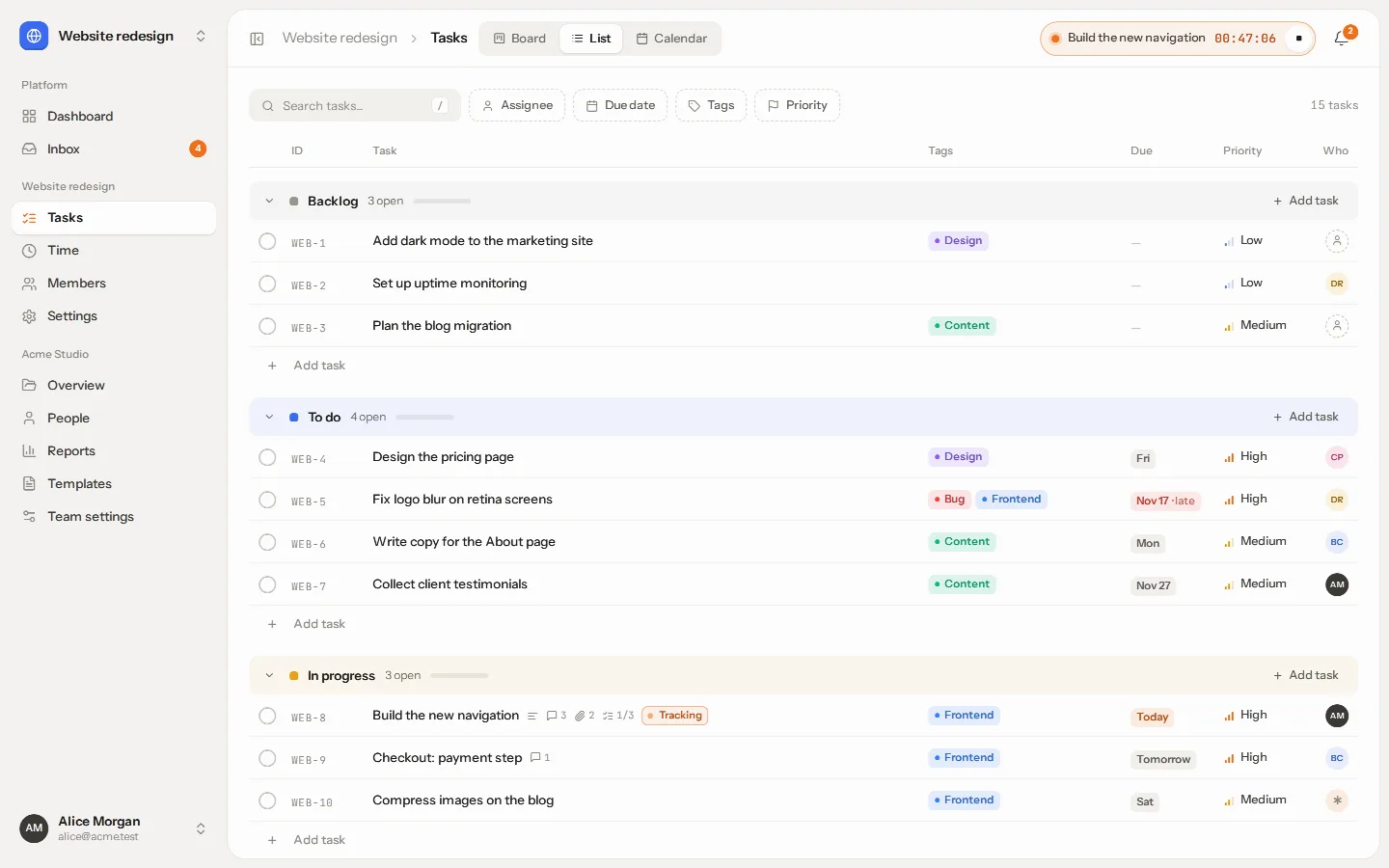
Three views of the same tasks
Switch between Board, List and Calendar with one click. Lists are the columns of your board: arrange their tasks by hand, or sort a list by priority, due date, creation or title for everyone on the project.
- Drag tasks between lists and reorder the lists themselves
- Teammates’ changes appear on your screen within moments, no reload
- Completed tasks fold into a section at the end of each list
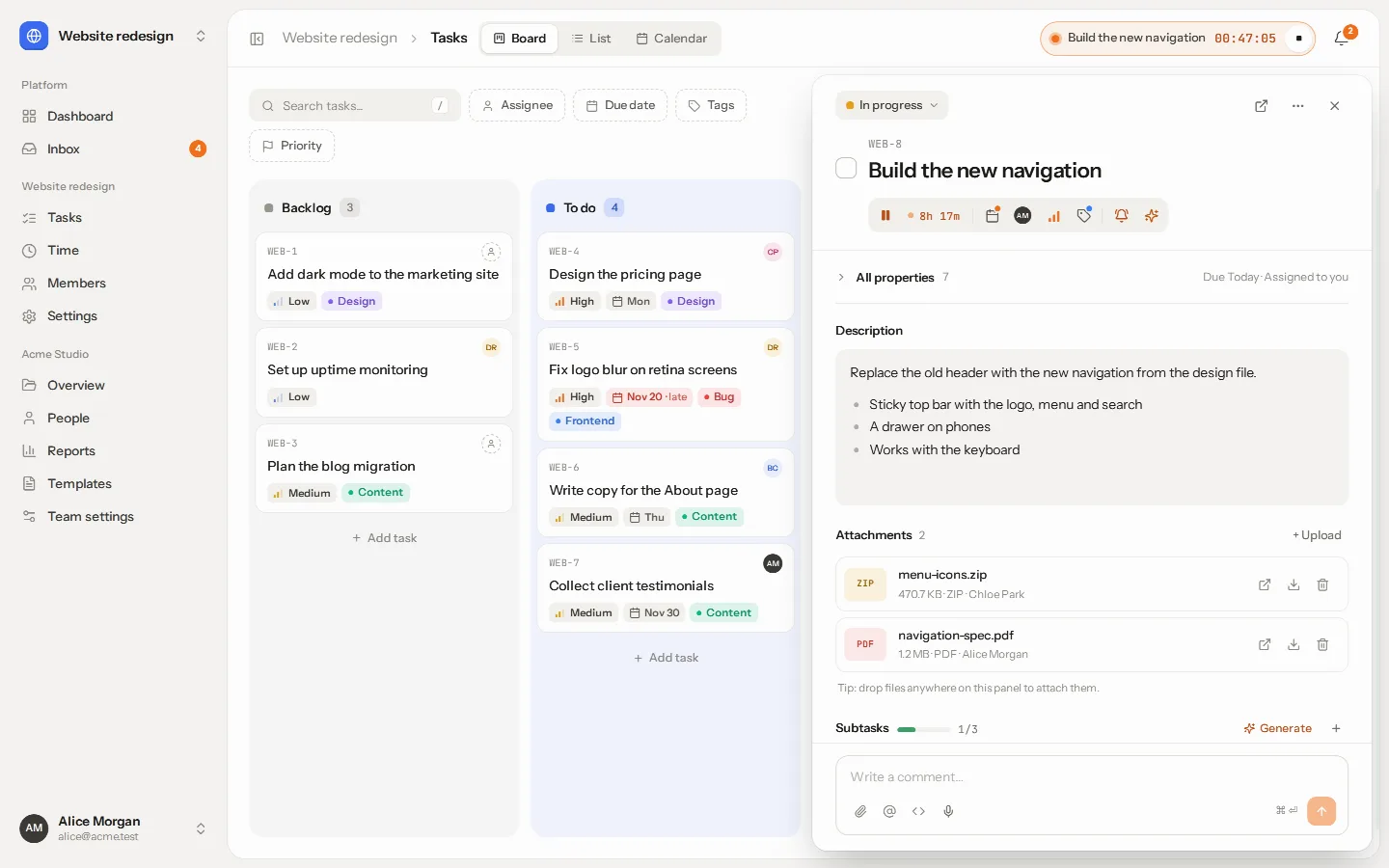
Tasks with everything they need
Each task gets an ID such as WEB-12 that you can share and search for. Give it an assignee, a due date, a priority, an estimate and tags, write a description, and break it into subtasks.
- Subtasks, one level deep, with their own assignee and timer
- Link tasks as related, as blocking each other, or as duplicates
- A side panel for quick edits and a full page for long work
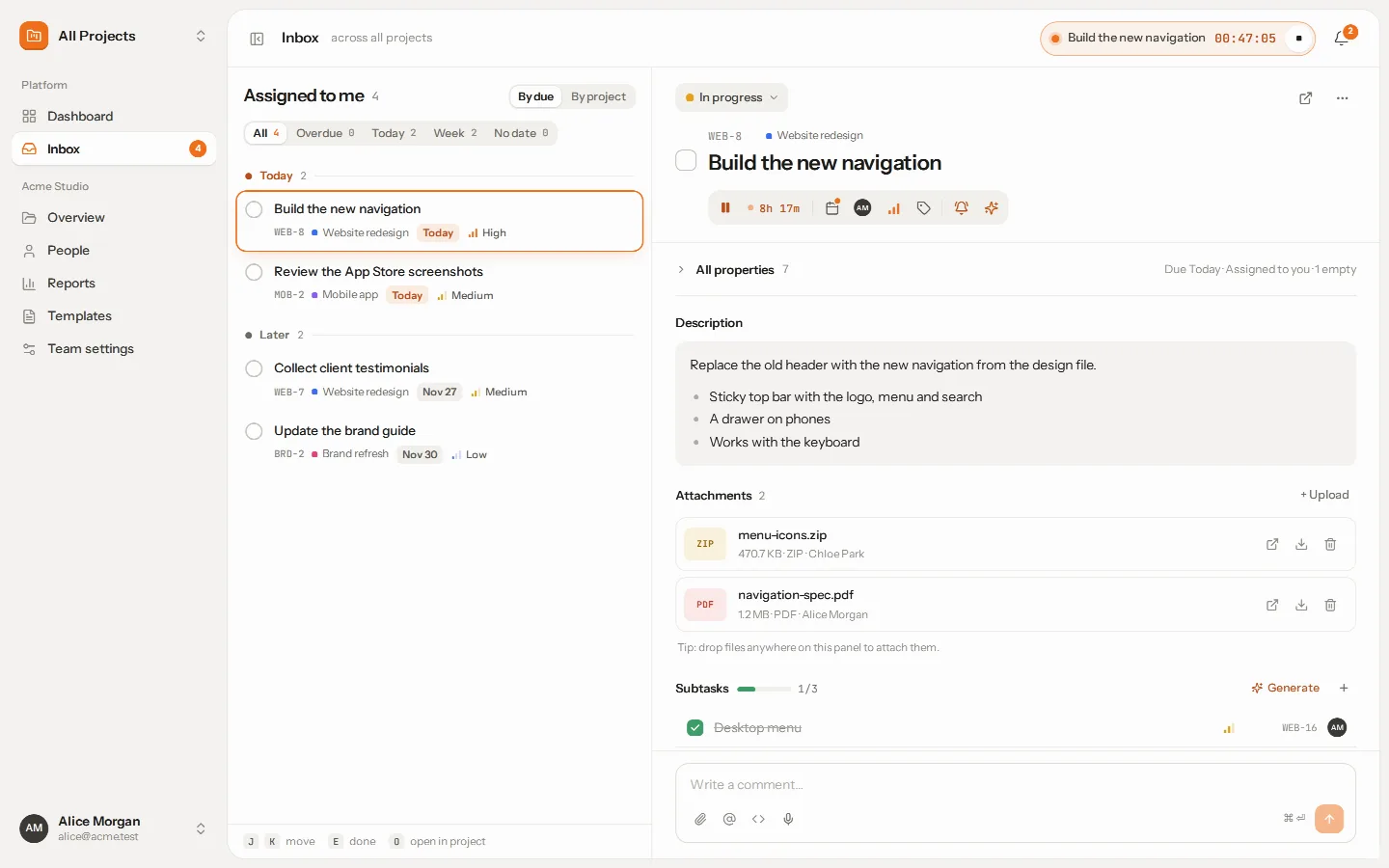
Talk where the work is
Discuss a task in its comments, reply to a comment and mention teammates with @. Attach files and images, and read the task’s history of who changed what.
- Your Inbox lists the tasks assigned to you, by due date
- Mentions, replies and changes on tasks you follow arrive as notifications
- Images show inline, other files download in one click
Find anything in seconds
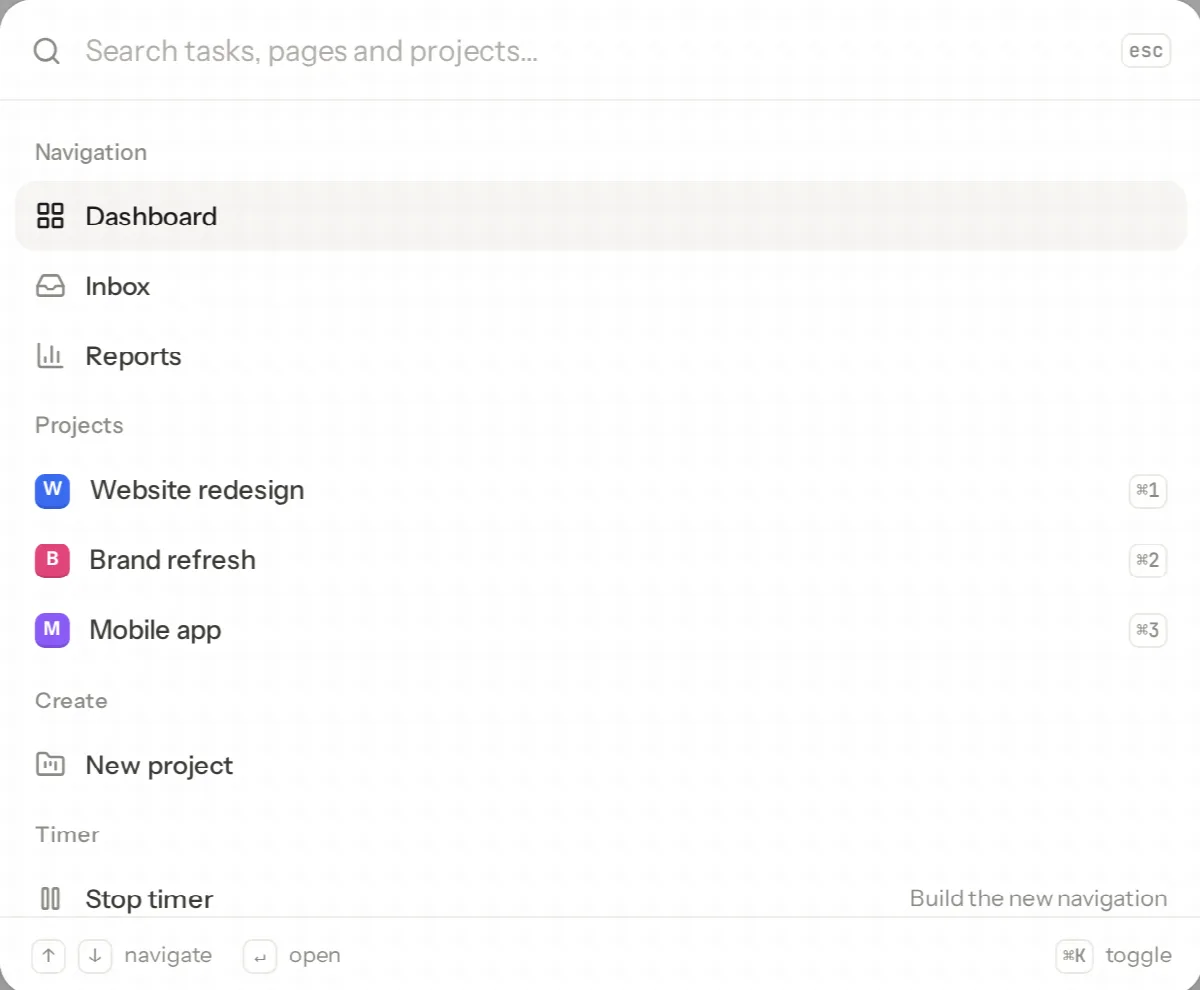
Press ⌘K to jump to a task, a project or an action. Filter a project by assignee, due date, tags and priority, search across all your projects, or type a task ID to open it.
- Keyboard shortcuts for the things you do every day
- Favorite projects stay on top of the project switcher
And there’s more
-
Project templates
Start a project with ready-made lists and starter tasks, from a built-in template or your team’s own.
-
AI task breakdown
Let AI split a task into three to eight subtasks with estimates.
-
Notifications
Hear about tasks you follow, in the app, with a Do Not Disturb switch.
-
On your phone
Add Takahe to your home screen. The board and pickers are made for touch.
-
Chrome extension
Create a task from any web page without leaving it.
-
Webhooks
Send a project’s changes to your own app or automation as signed JSON.
FAQ
Questions, answered
Can I see my tasks as a kanban board and as a list?
Yes. Every project has a Board, a List and a Calendar view of the same tasks. You switch with one click, and nothing is copied.
Does Takahe support subtasks and dependencies?
Tasks can have subtasks one level deep. You can also link two tasks of a project as related, as one blocking the other, or as duplicates.
How do task IDs work?
Each project has a short prefix, such as WEB, and its tasks are numbered WEB-1, WEB-2 and so on. Use the ID to search, to mention a task to a colleague, or to tell an AI agent which task to pick up.
Can I start a project from a template?
Yes. Pick a built-in template or one your team made, and the new project starts with its lists and starter tasks.
Stop guessing where the time went.
Create your account, set up your first project and track your first hour in a few minutes.
Already have an account? Log in