Track time where the work happens.
Start the timer on a task with one click. It keeps running in the top bar on every page, so you always know what you’re tracking and for how long.
Already have an account? Log in
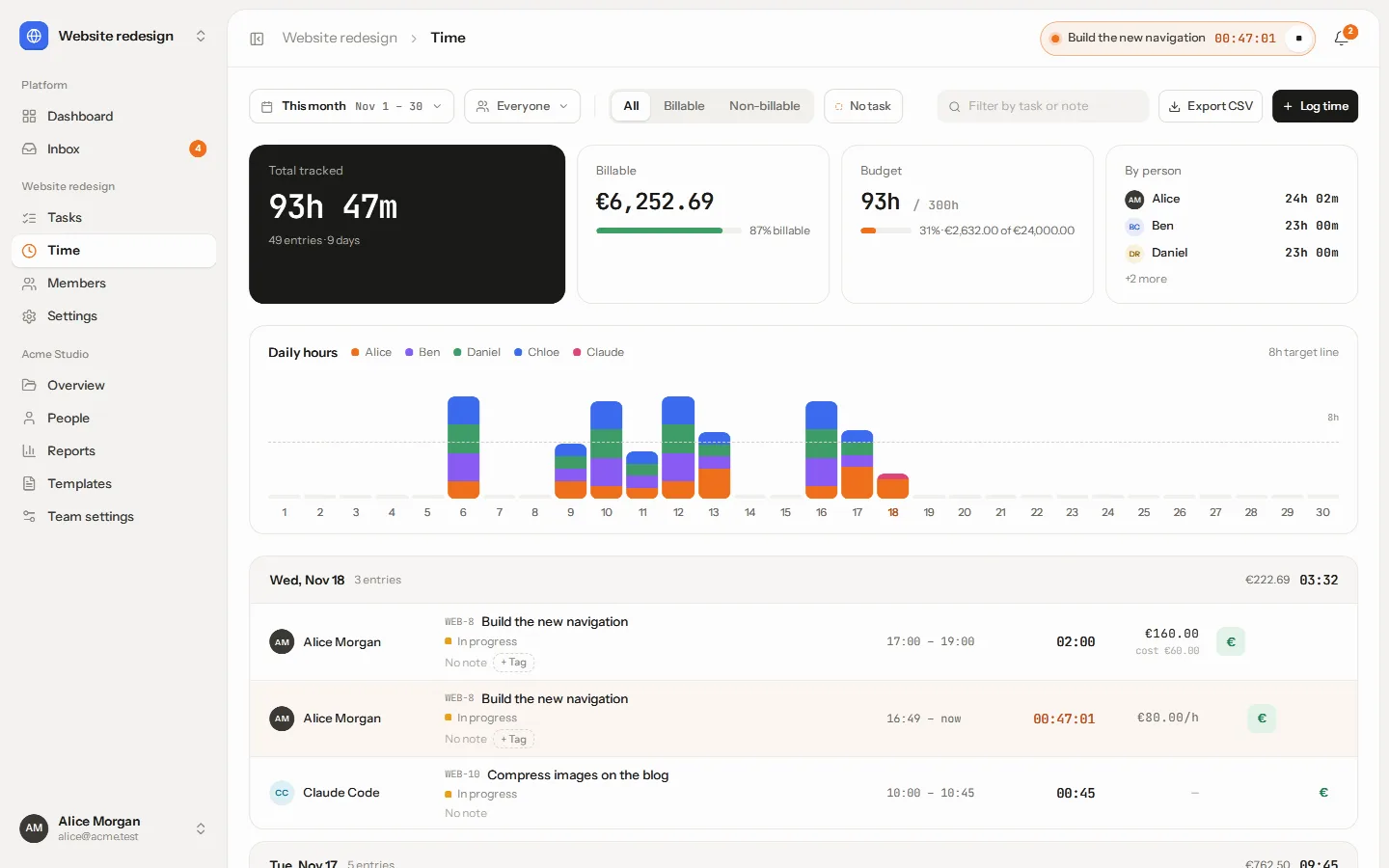
A timer on every task
Click play on a card, in the task panel or on the dashboard. The running timer sits in the top bar and in the browser tab, and starting another one saves the first.
- One running timer at a time, so no hour is counted twice
- Start from your recent tasks, or just type a note and attach the task later
- An e-mail reminds you when a timer has been running for 8 hours
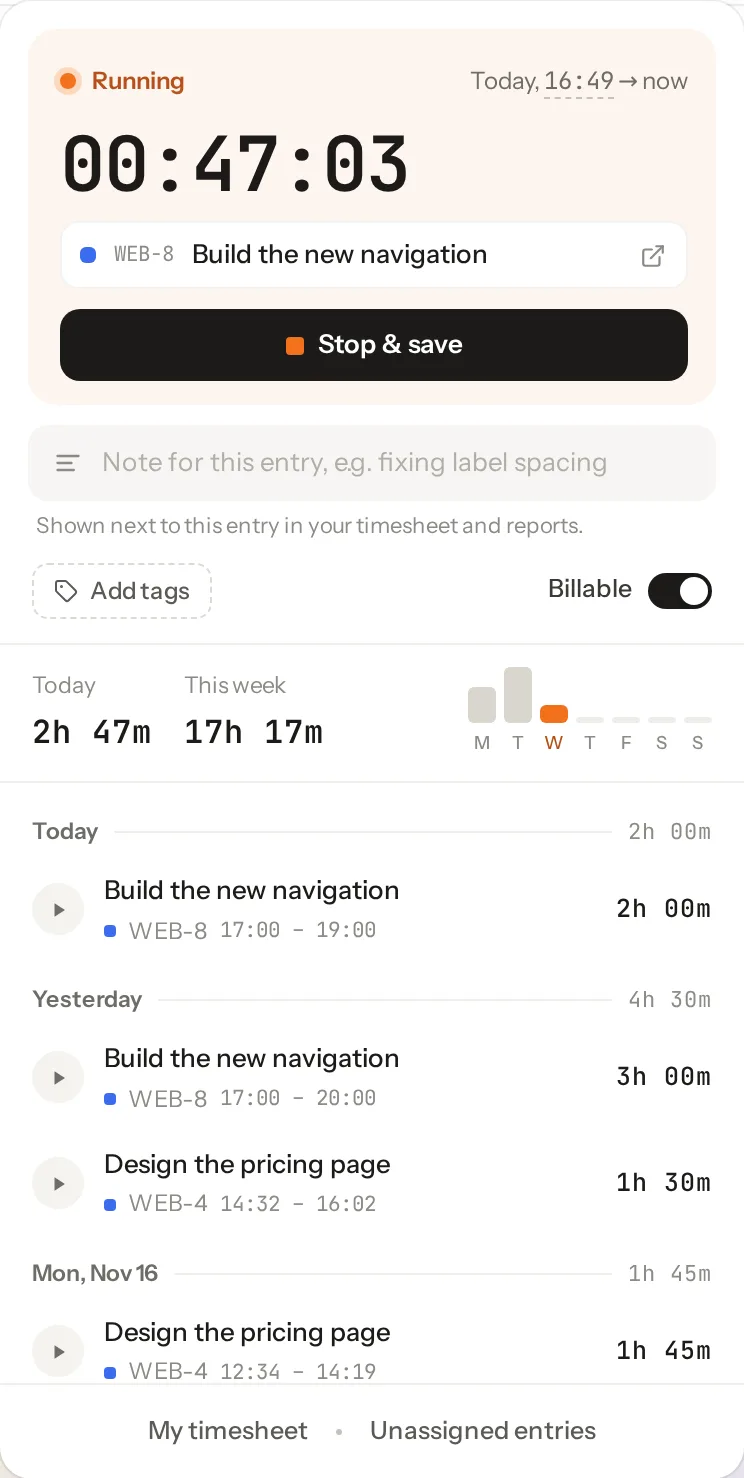
Log the time you forgot
Add an entry afterwards with a start and an end, or type a duration such as 1:30 on the task. Edit or delete your entries, add notes and tags, and mark them billable or not.
- Entries without a task are listed so none get lost
- Time entry tags are separate from task tags
Your week at a glance
The dashboard shows your focus tasks, your time this week and the comments waiting for your reply. Every Monday, an e-mail sums up last week’s time and your open tasks.
Read more in Dashboard and Inbox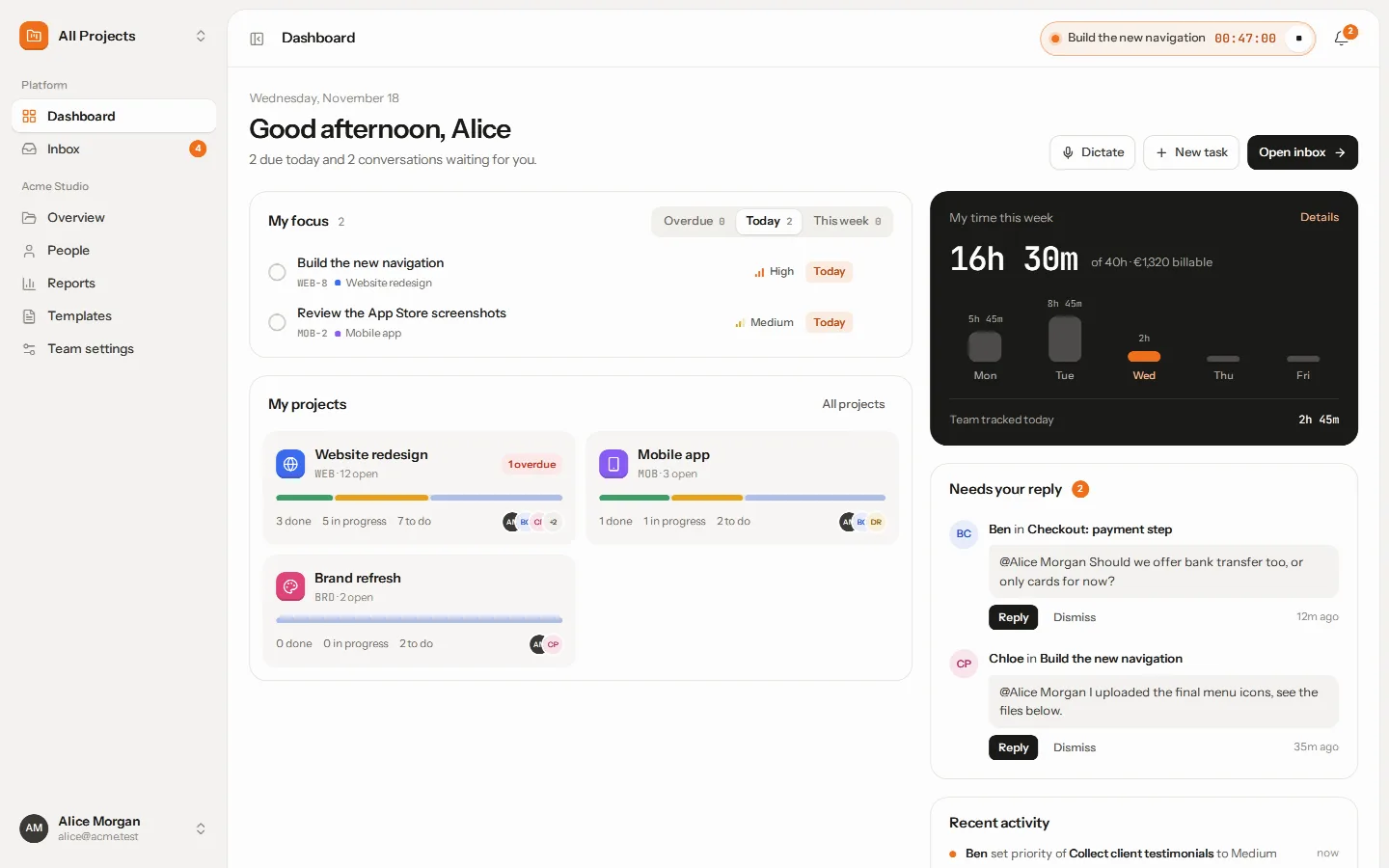
AI agents track time too
An AI agent connected to a project starts and stops its own timers, one per task, next to yours. Its time shows up on the Time page and in reports under its own name.
Read more in AI agents (MCP)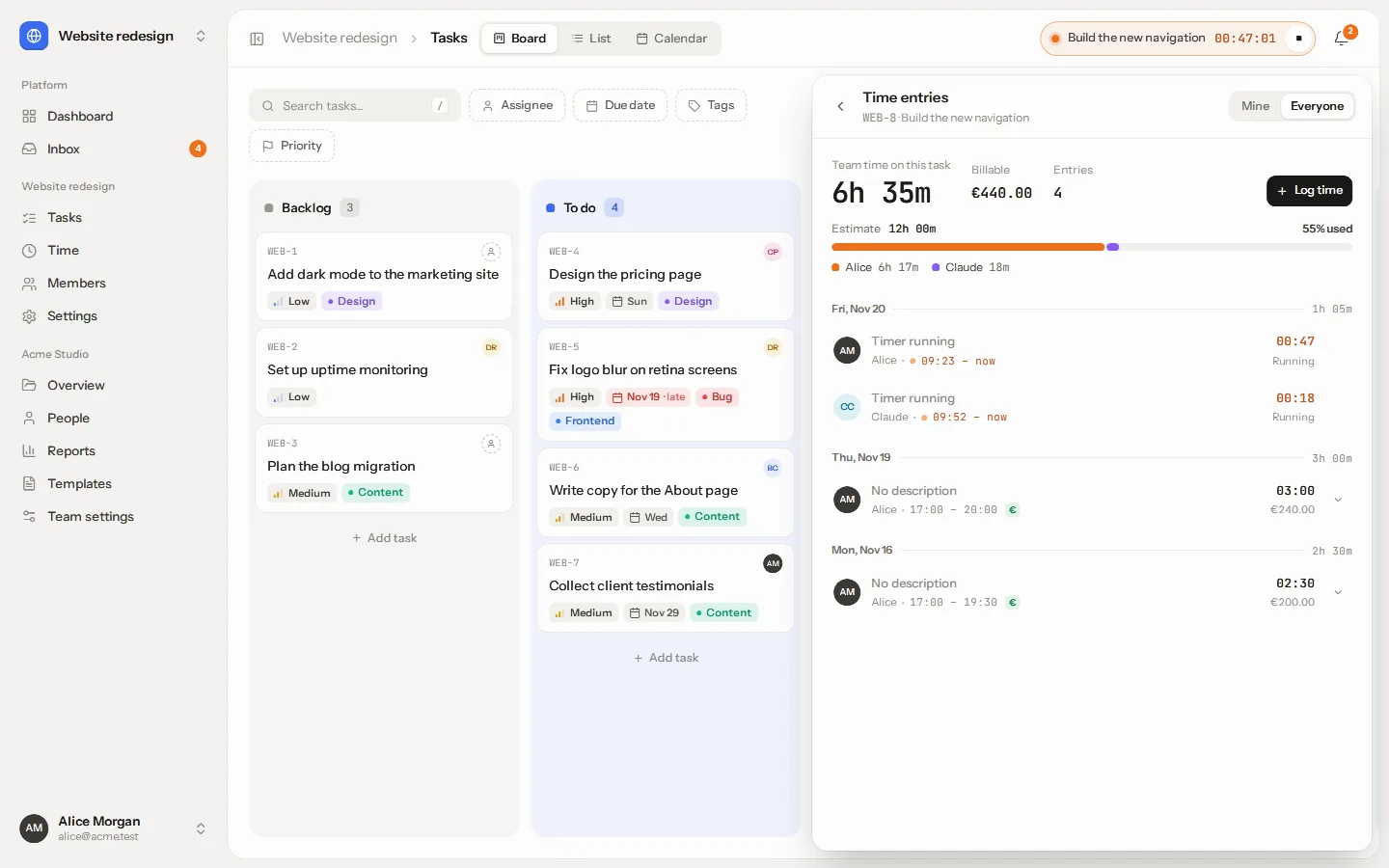
And there’s more
-
Billable or not
Every entry has a billable flag. Timers start as billable.
-
Notes and tags
Say what you did and tag entries to slice the time later.
-
CSV export
Download the entries of a period, a person or tags.
-
Rates and budgets
Rates turn the time into cost, revenue and profit.
-
Weekly summary
Last week’s time and your open tasks every Monday.
-
On your phone
Start and stop the timer from your home screen.
FAQ
Questions, answered
Can I track time without a task?
Yes. Type a note and start the timer. The entry keeps your note, and you can attach a task later. The Time page lists entries without a task, so none get lost.
Can I run two timers at once?
No. You have one running timer, and starting another stops and saves the first. AI agents are the exception: a project agent can run one timer per task.
Can I add time afterwards?
Yes. Log time on the Time page with a start and an end, or on a task with a duration such as 1:30 or 1.5.
Who sees my time?
You always see your own. People who manage the project, its owner and the owners and admins of its team, see everyone’s time on it.
Stop guessing where the time went.
Create your account, set up your first project and track your first hour in a few minutes.
Already have an account? Log in